Manual CodeQL Environment Setup and Basic Usage
An introduction to manually setting up and using CodeQL, a popular code analysis technology reportedly used to discover vulnerabilities in Log4j and Spring Cloud Gateway.
Read in Chinese→0x00 Preface
CodeQL has become incredibly popular recently, and it is said that vulnerabilities in Log4j and the recent Spring Cloud Gateway were discovered using CodeQL. Whether it is useful or not, I need to try it first. So, I decided to learn about it.
0x01 What Is CodeQL?
Before encountering CodeQL, I always thought it was a code auditing tool similar to Fortify or RIPS.
But that is not actually the case. My understanding was completely wrong…
Do you remember what SQL stands for? -> Structured Query Language: a structured query language.
So, in simple terms, my understanding is:
- CodeQL = code + QL, making it an object-oriented programming language (compared with SQL)
- It structurally analyzes code and stores the results in a code database
- You can then write QL to perform various queries
- You can locate specific methods or classes, trace parameter flows, and so on…
Amazing…
Official website:
https://github.com/github/codeql
0x01 Related Downloads
CodeQL itself consists of two parts: the analysis engine and the SDK.
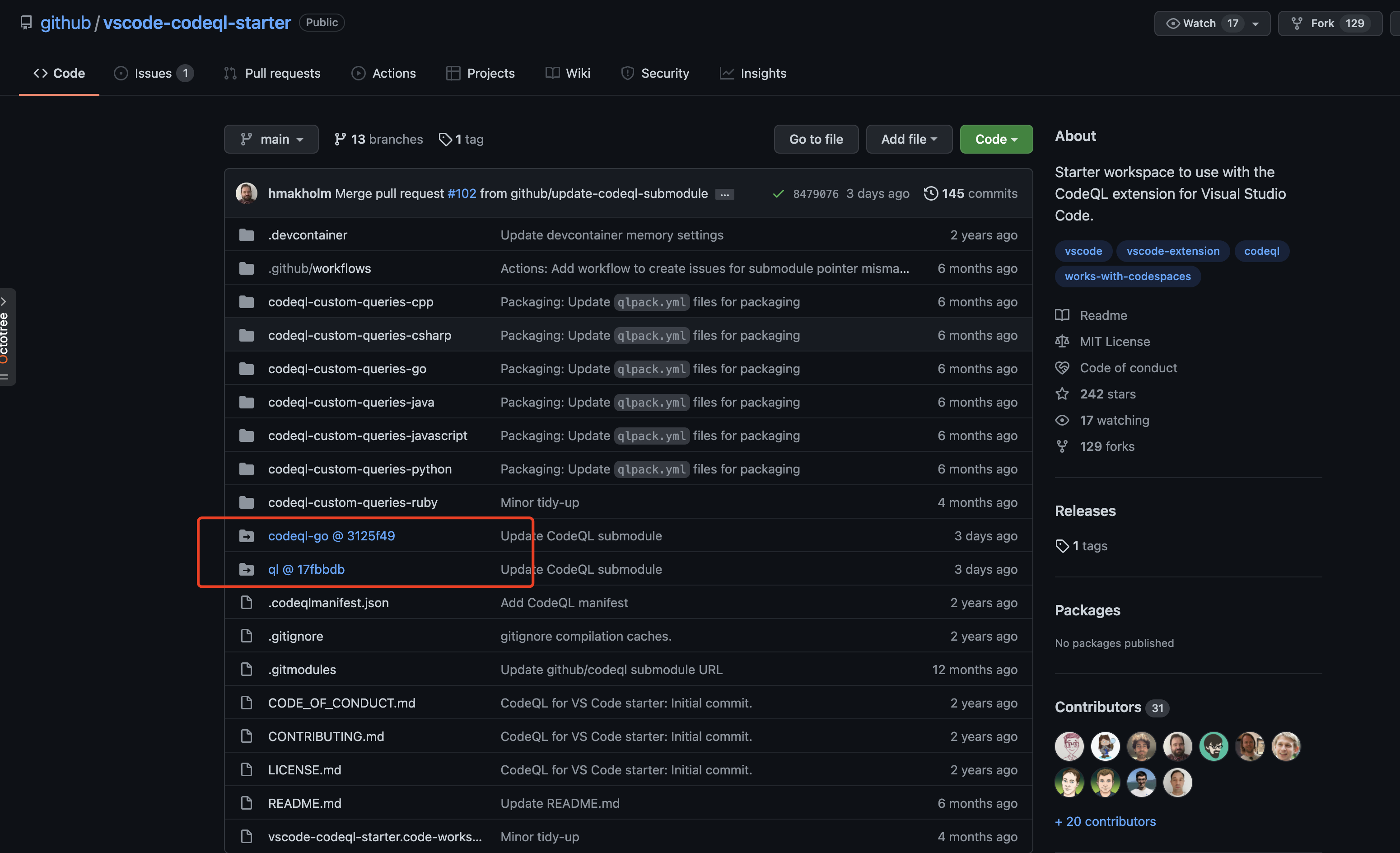
I recommend downloading this directly! It is a ready-made project that integrates with VS Code and is convenient to use.
https://github.com/github/vscode-codeql-starter
(Note that you cannot simply use git clone when downloading it because it contains subprojects.
0x02 Detailed Installation Steps
I recommend using the ready-made vscode-codeql-starter project. It is very convenient to use.
1. VS Code Environment
- First, download and install Visual Studio Code from the official website.
Visual Studio Code - Code Editing. Redefined
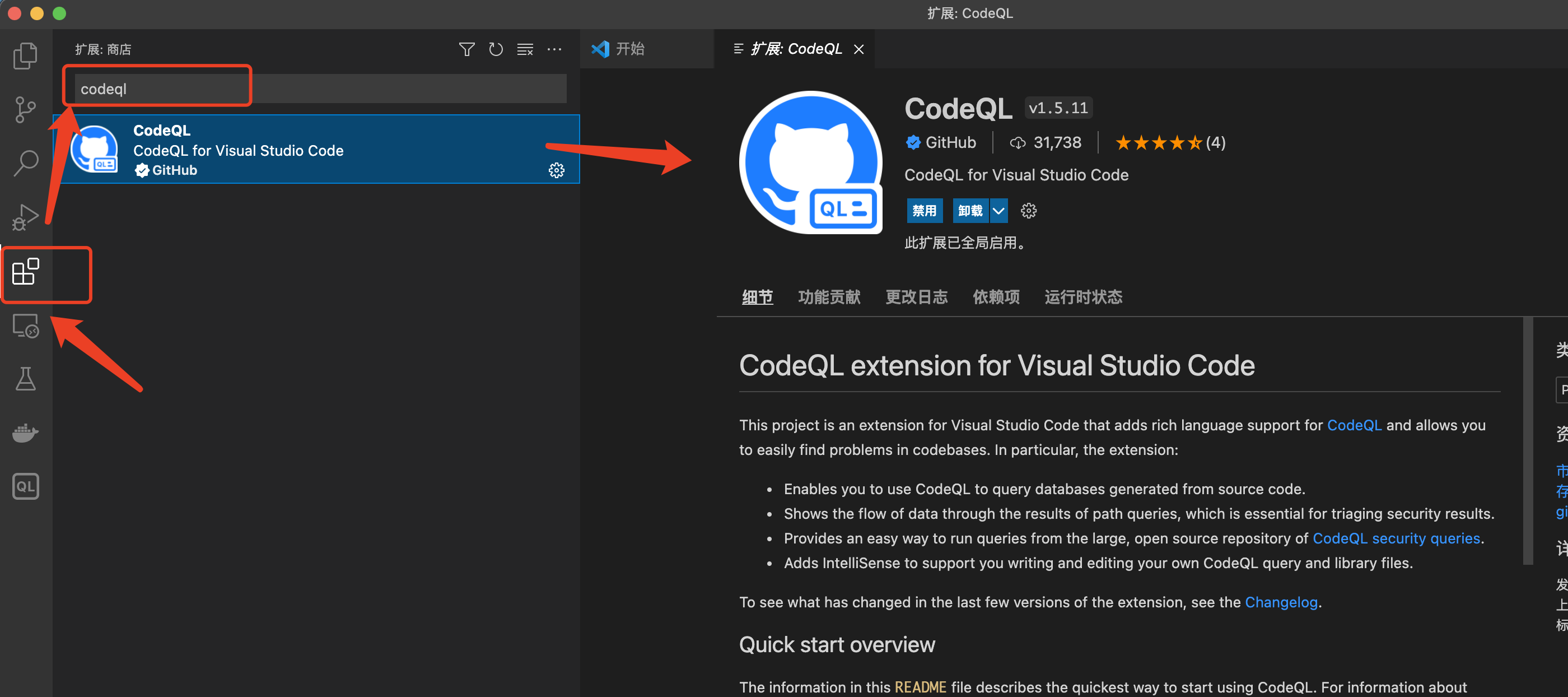
- Install the CodeQL extension:
2. Install the CodeQL Engine
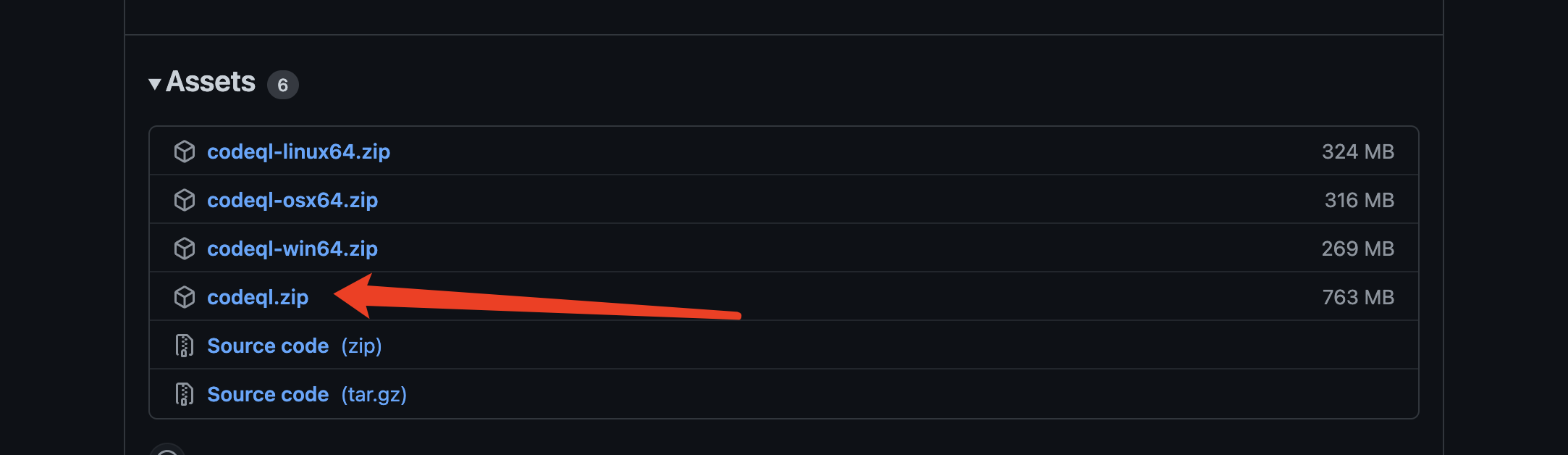
Download the engine binaries: Releases · github/codeql-cli-binaries
(I recommend downloading codeql.zip directly, as it includes packages for multiple platforms.)
3. Clone the CodeQL Starter Workspace
I recommend downloading this directly! It is a ready-made project that integrates with VS Code and is convenient to use.
https://github.com/github/vscode-codeql-starter
(Note that you cannot simply use git clone when downloading it because it contains subprojects.
The submodules in this project must also be cloned.
Use the following command to complete everything in one step:
git clone --recursive https://github.com/github/vscode-codeql-starter/
4. Configure Environment Variables
-
In the VS Code menu, click
File > Open Workspaceand select thevscode-codeql-starter.code-workspacefile to open this workspace. -
Find the extension settings.
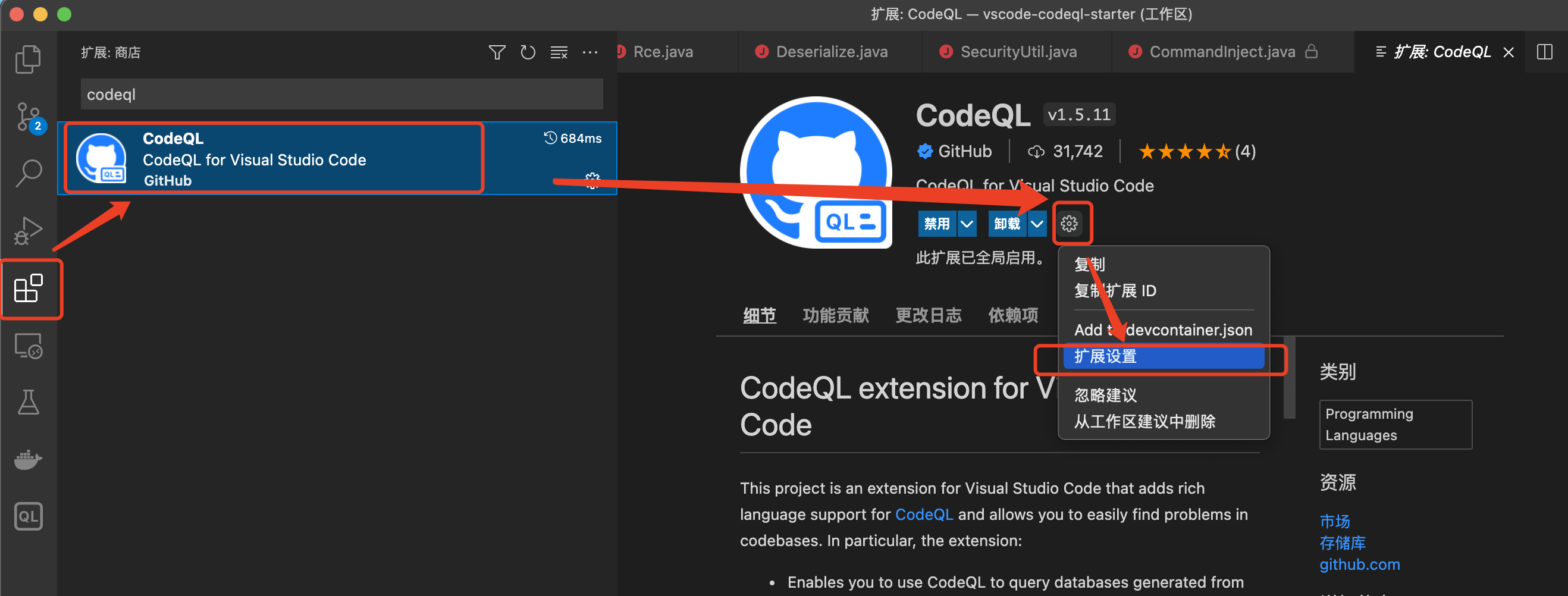
- Set the engine path.
Add the executable file for the CodeQL engine you just downloaded.
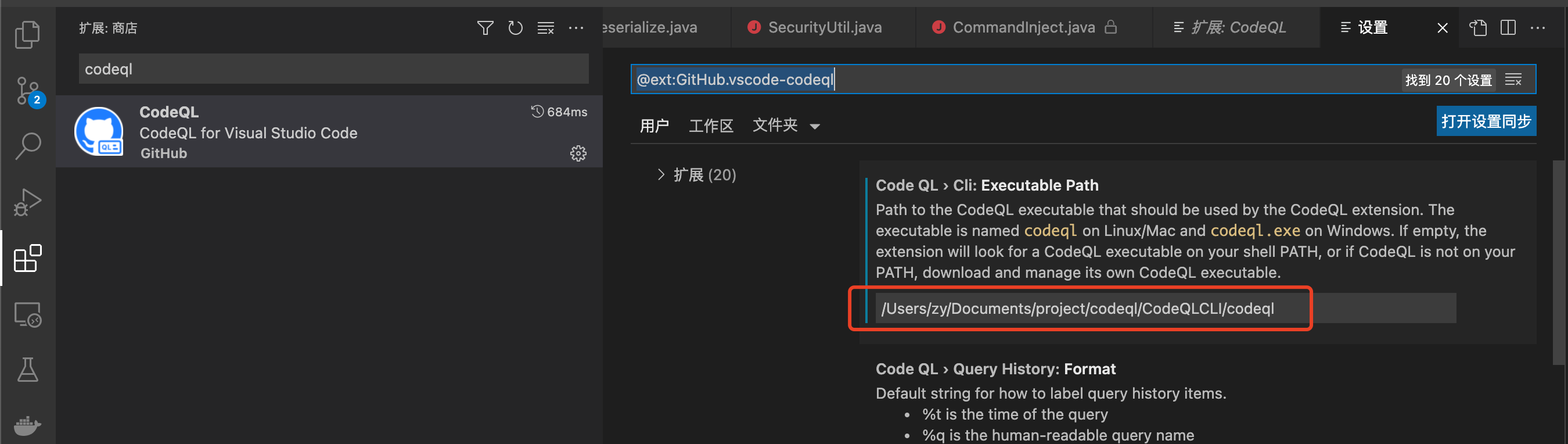
This is the path to the executable for your operating system after extracting codeql.zip.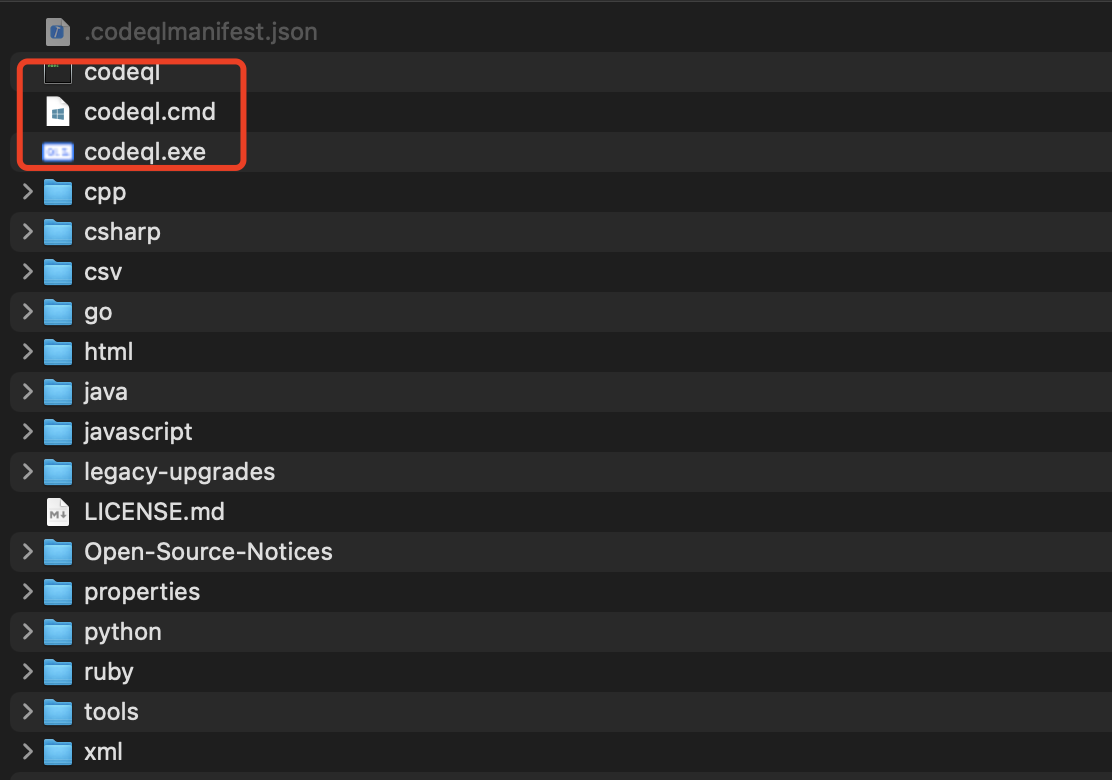
5. Add It to the System Environment Variables
To make CodeQL easier to use later, you also need to add the path above to the system environment variables.
On my Mac, I do it like this:
vim ~/.zshrc
alias codeql="/Users/zy/Documents/project/codeql/CodeQLCLI/codeql"
On Windows, this is similar to adding Java environment variables. Simply add the directory containing codeql.exe to PATH.
At this point, the environment should be ready. The next step is to create a database (or import one).
0x03 Create a Database (Java)
- Open a terminal and use the
codeqlcommand.
codeql database create [数据库存的路径] --language="java" --command="mvn clean install --file pom.xml" --source-root=[源码路径路径]For example, I used this project as the audit target: https://github.com/godzeo/java-sec-code
codeql database create /Users/zy/Documents/project/codeql/vscode-codeql-starter-main/database/codeql_java-sec-code --language="java" --command="mvn clean install --file pom.xml" --source-root=/Users/zy/Documents/project/sec_java_vul/java-sec-codeNow, let us break down this command:
| codeql database create java-database | Creates a database named codeql_java-sec-code |
|---|---|
| -language=java | Sets Java as the compilation language |
| -command=“mvn clean install –file pom.xml” | Compiles the source code using this command |
| –source-root | Sets the source code path |
The database was created successfully.
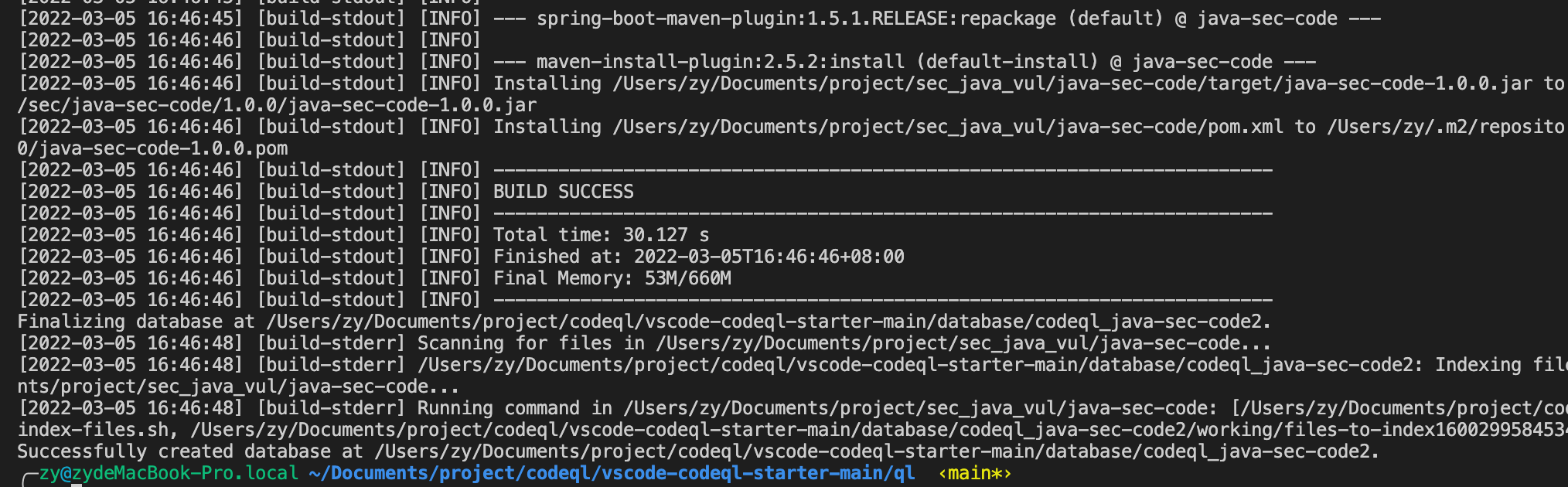
0x04 Import the Database and Run Queries
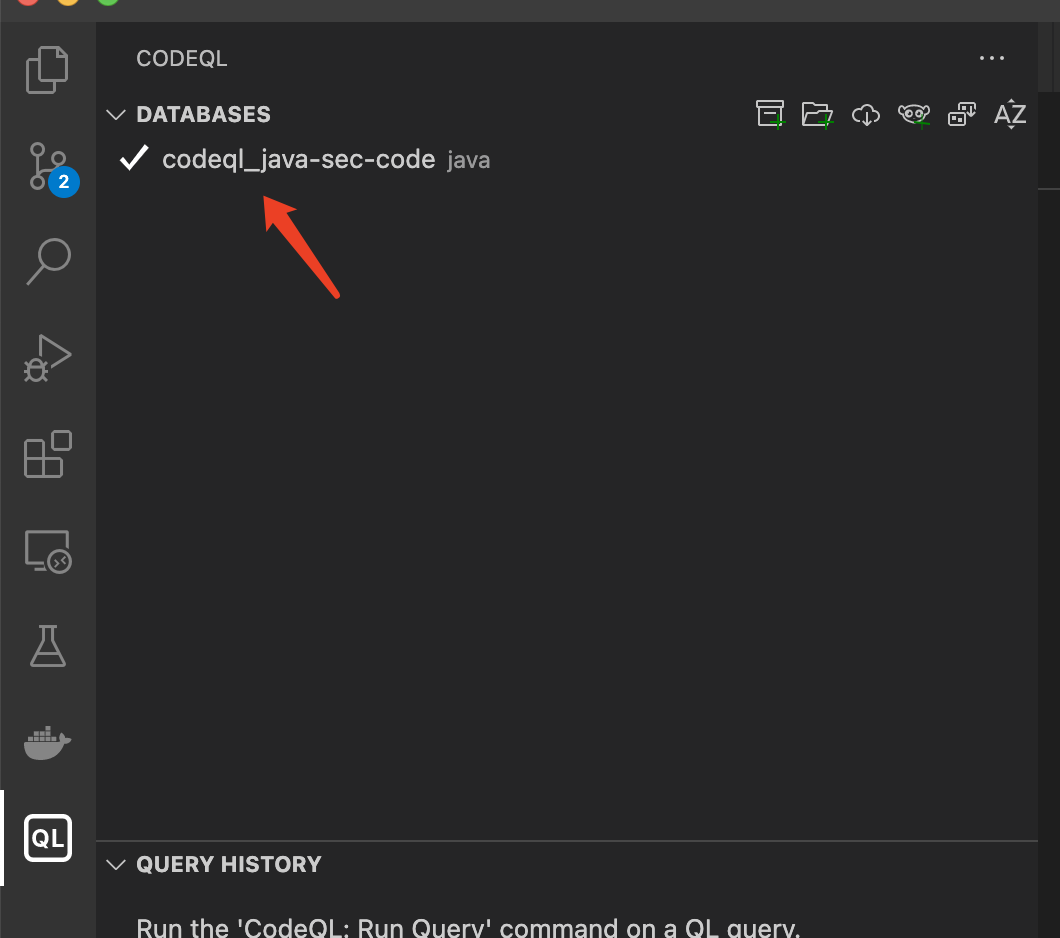
In VS Code, find the option to import a database.
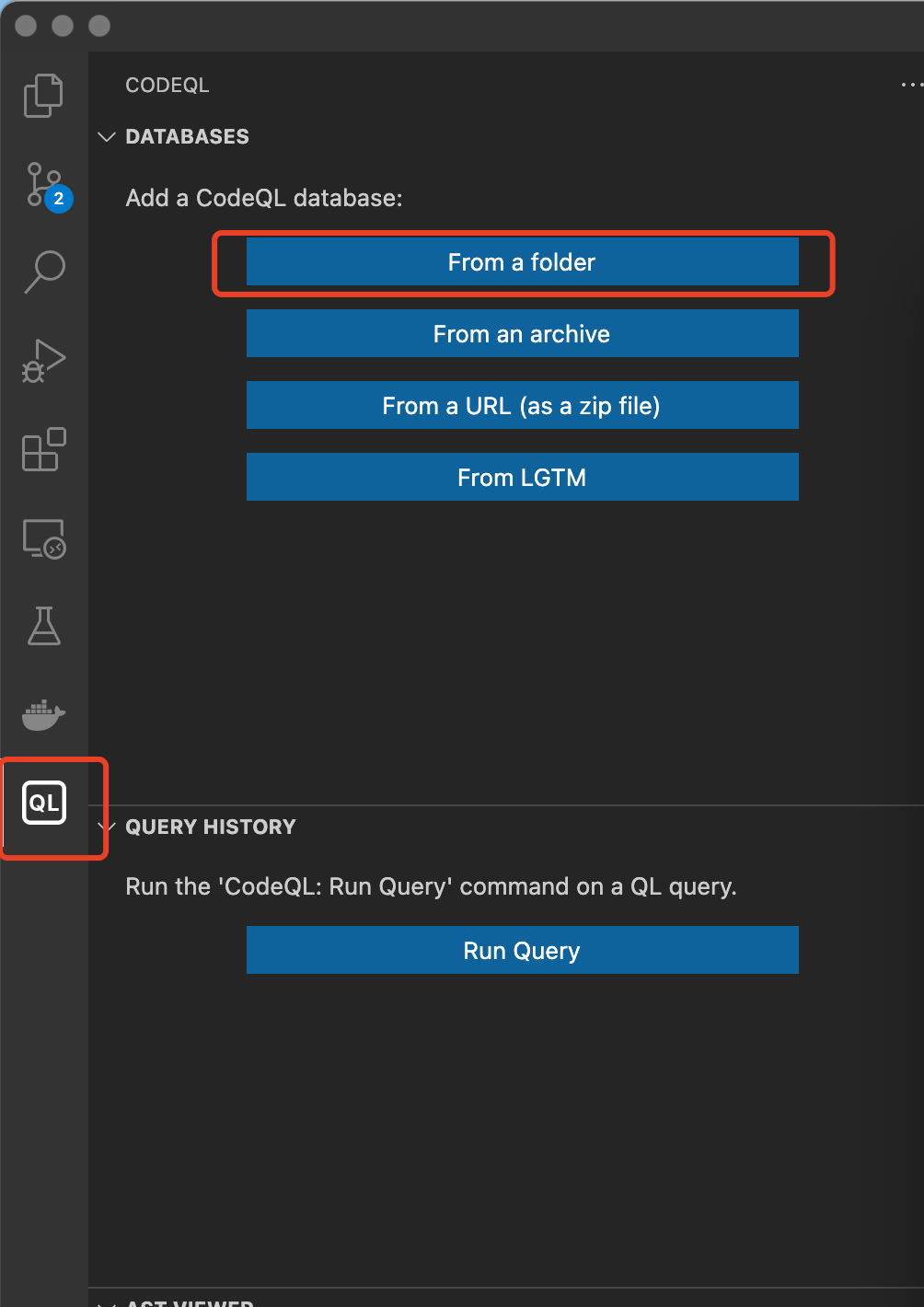
The database has now been imported successfully.
Now, start running queries:
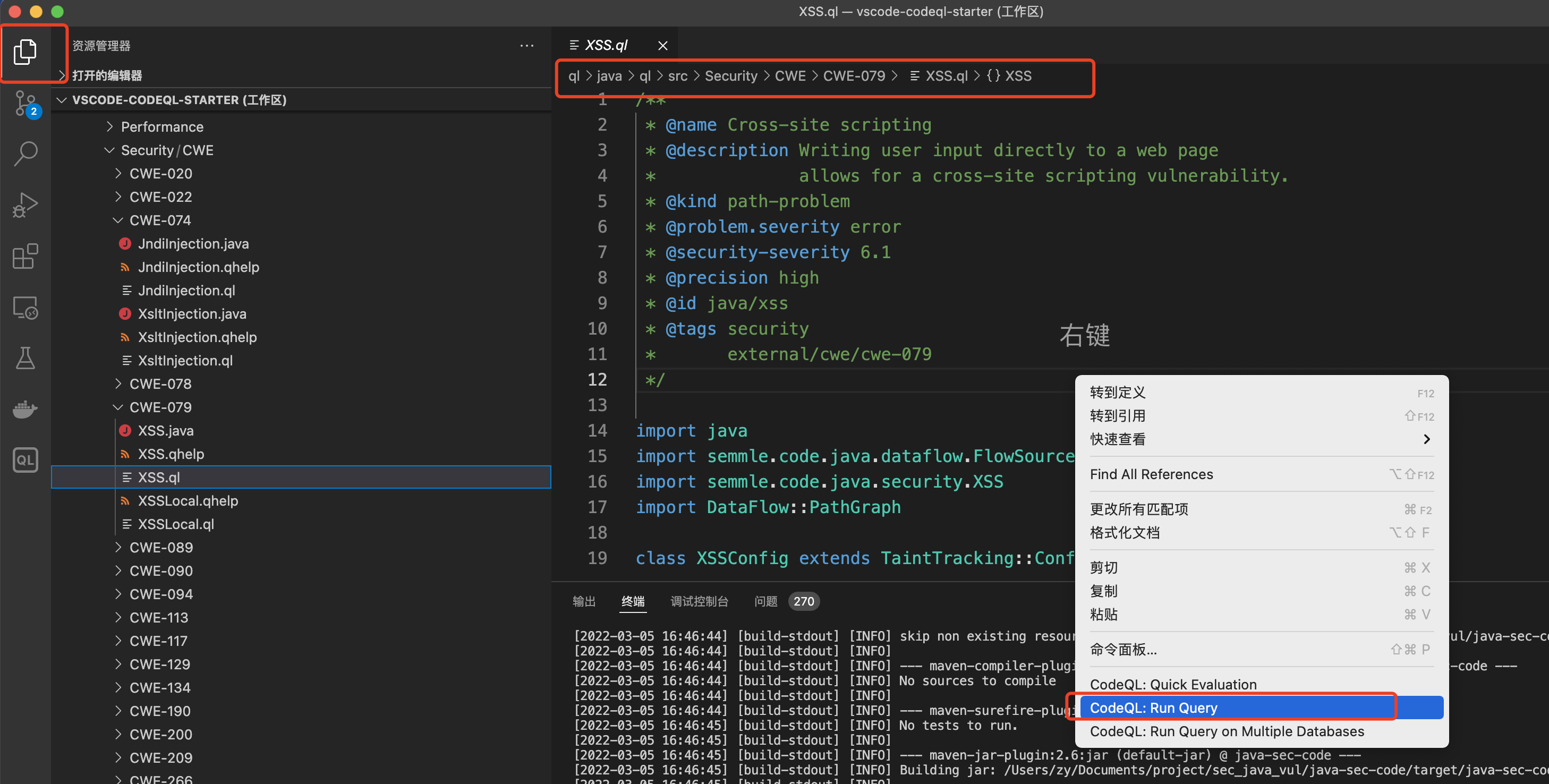
跟目录/ql/java/ql/src/Security                 放着一些官方的规则(java),可直接用。
这跟目录/ql/java/ql/src/experimental/Security  一些还在实验中的规则(java)。
Find a rule file to try. For example, right-click the xss.ql file and select Run Query.
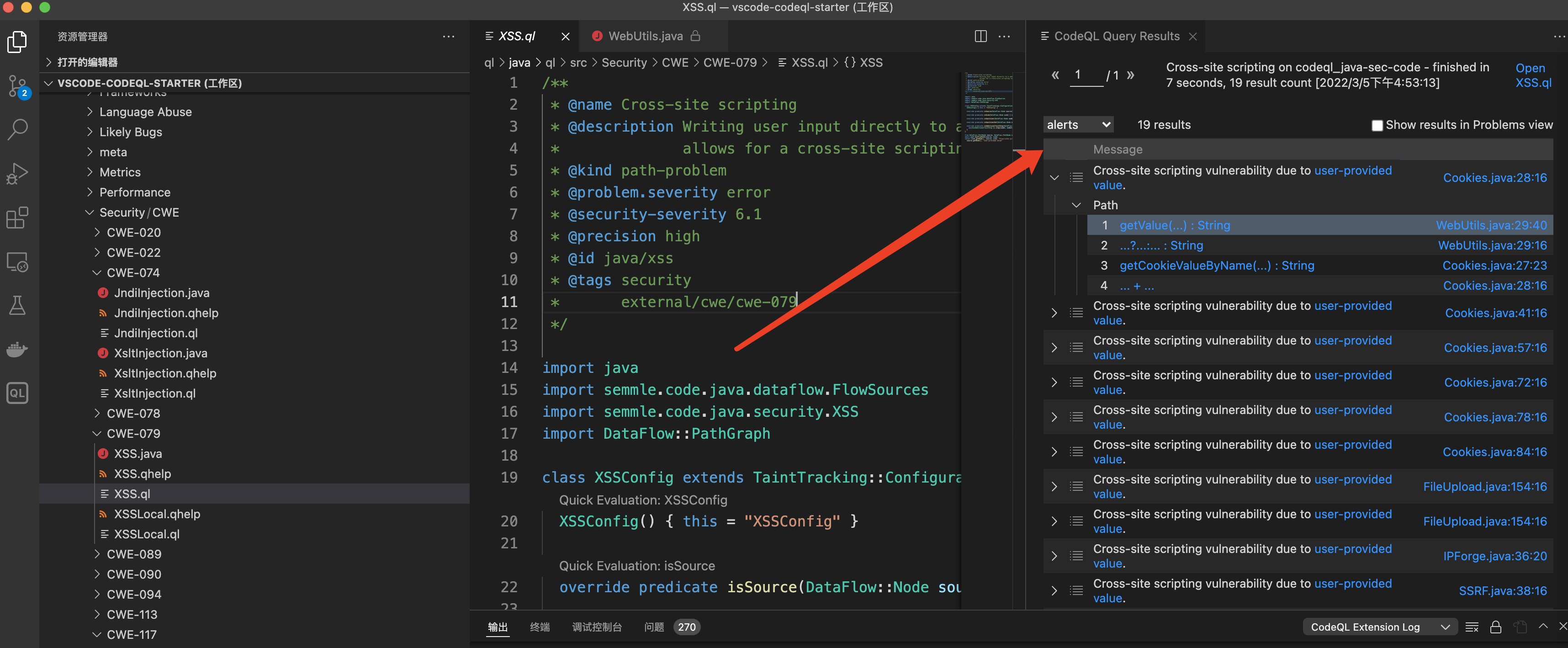
The results are displayed, which means everything is working.
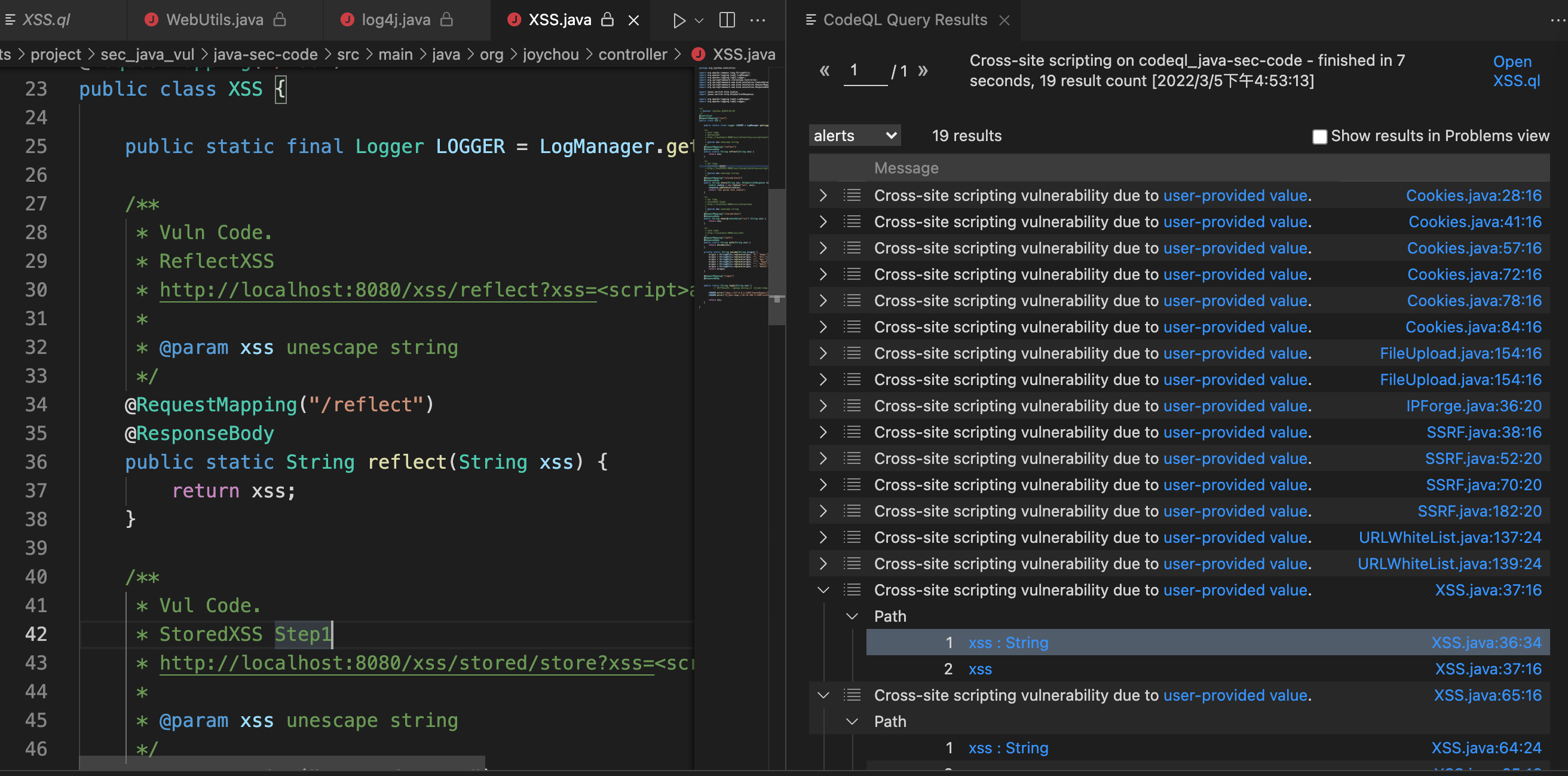
Then click the result to locate the vulnerability.
After completing these basics, CodeQL is just about usable. The next step is to learn its syntax and rules, then write and use your own rules.