Detailed Guide to Bringing CS Online via PowerShell (CDN + Certificate)
A detailed, beginner-friendly guide to using domain fronting, a CDN, and certificates to route Cobalt Strike traffic through CDN nodes to a C2 server.
Read in Chinese→0x00 Introduction
This should be called domain fronting:
General diagram:
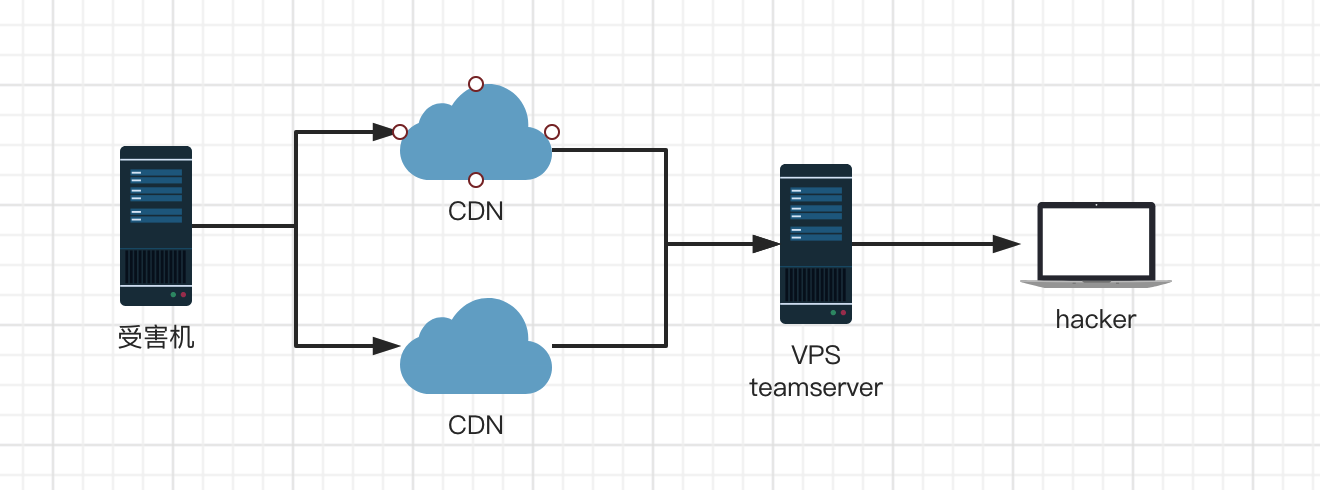
- Attack traffic is forwarded through CDN nodes to the actual C2 server
- CDN node IPs forward traffic by identifying the Host header in requests
- This can effectively evade some security devices and provide a degree of resistance to source tracing because all traffic is sent to the CDN
I previously read several articles, but their expert authors may have considered some parts too simple to include. I wrote down the details while setting it up myself. This serves as one of my notes, and I think it is relatively detailed and suitable for beginners.
0x01 Required Resources
- Cobalt Strike 4.0
- VPS (CS server)
- Domain name
- CDN
- Overseas proxy
0x02 Applying for a Free Domain Name
Application URL: https://www.freenom.com/
The key point is that it is free and does not require ICP registration.
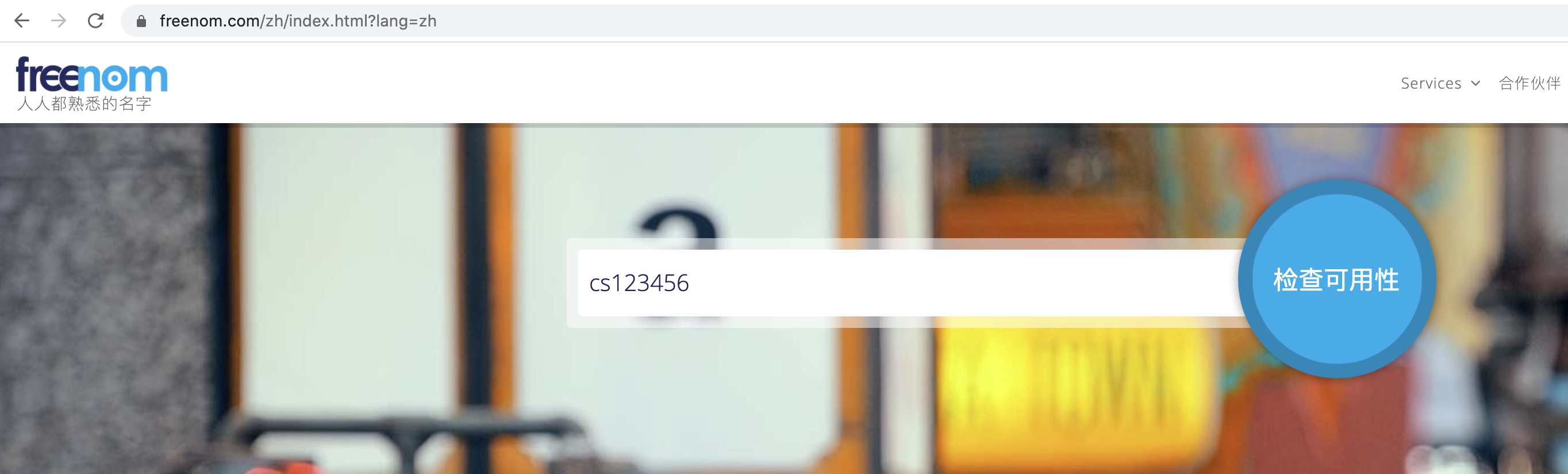
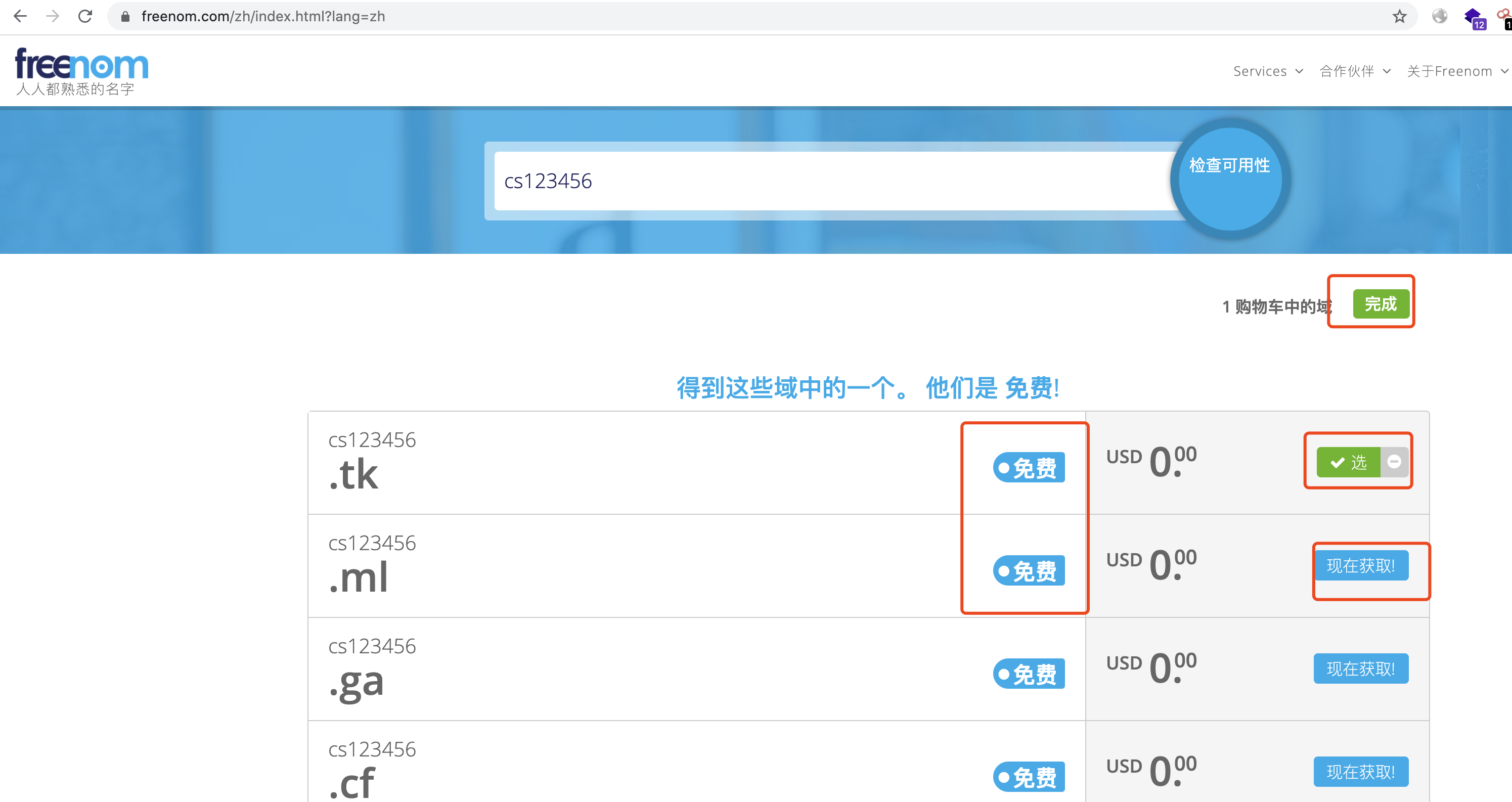
Choose and apply for a free domain name yourself.
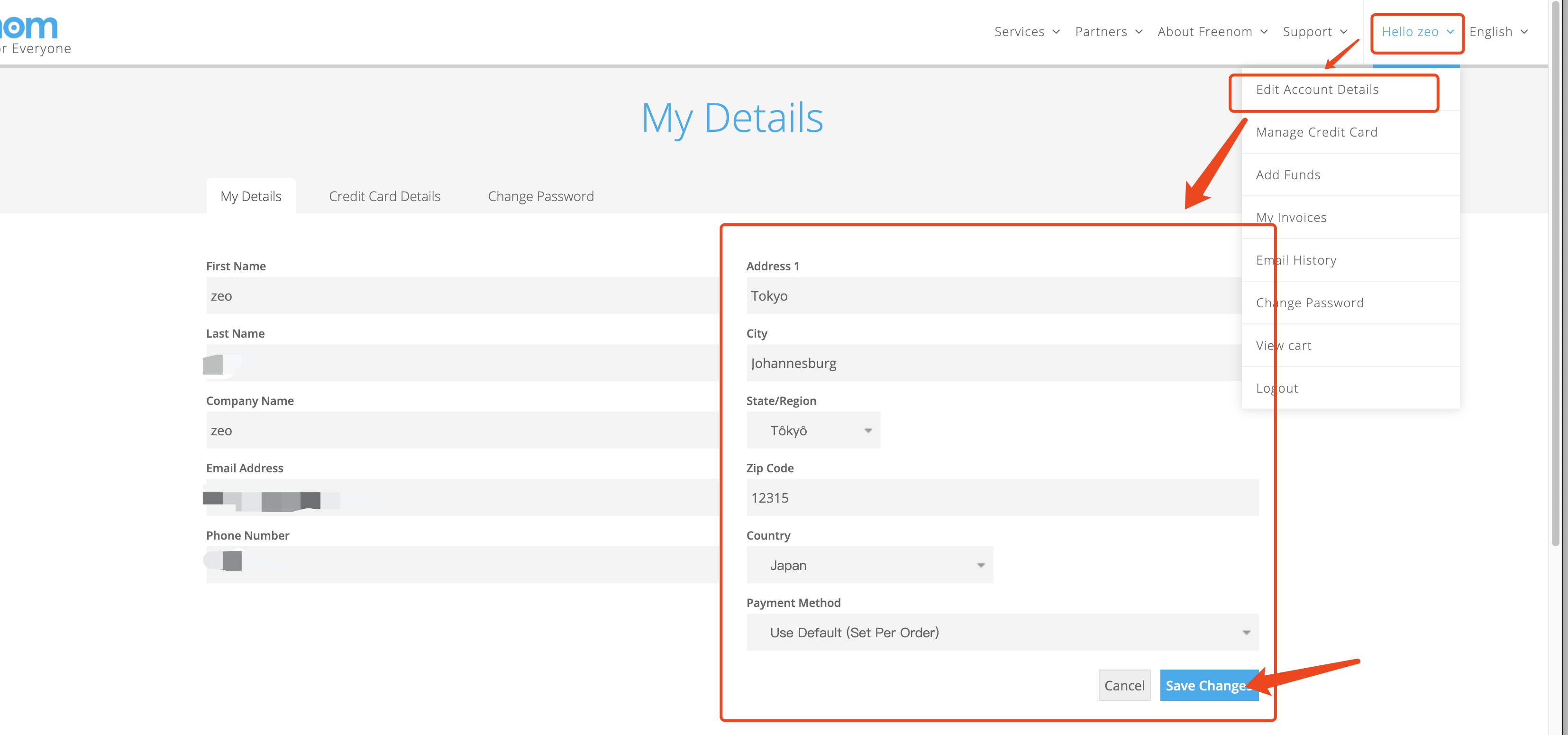
Note:
You need to use a proxy and set the address in your personal information to the proxy’s address; otherwise, the application may fail.
0x03 Preparing a Free CDN
Application URL: https://dash.cloudflare.com/
Register, log in, and configure the CDN yourself.
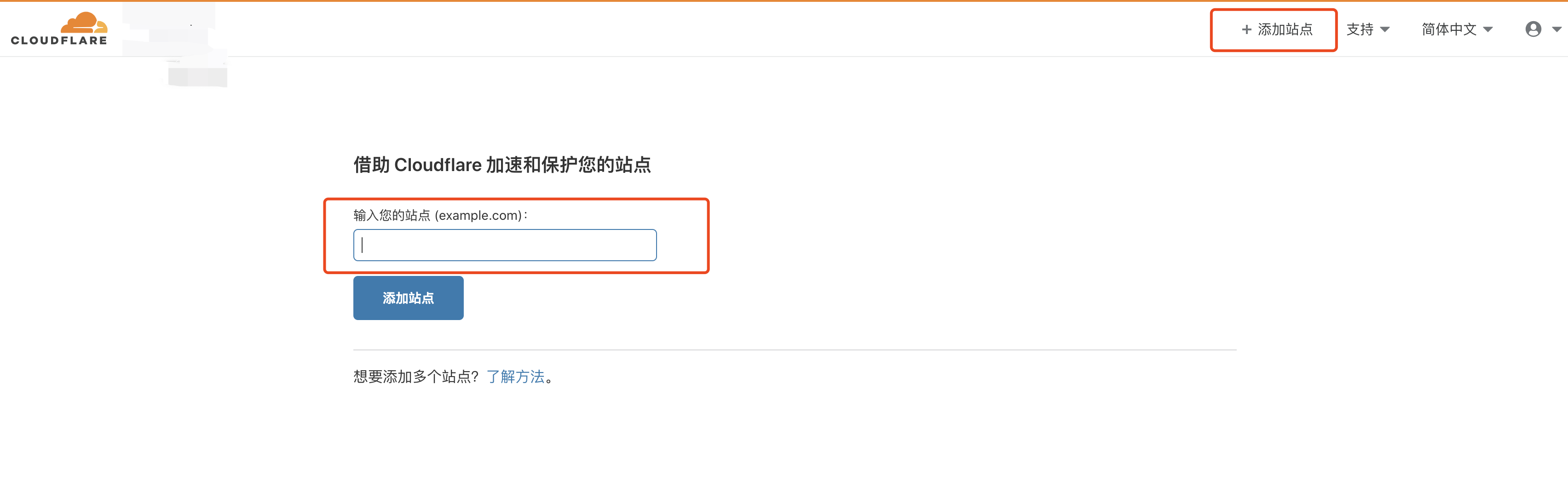
0x04 Linking the Domain Name and CDN
Log in to the CDN and add the domain name you just registered as a site
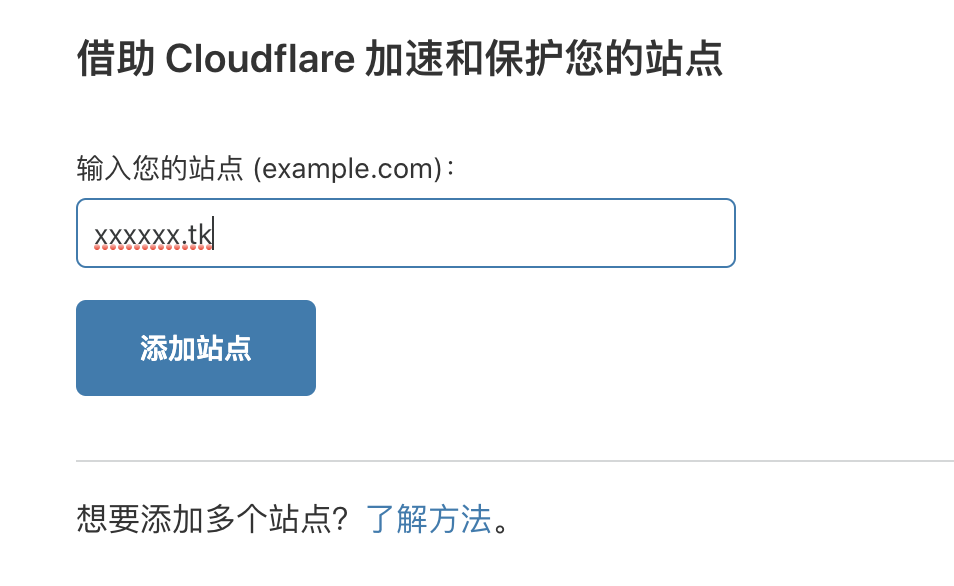
Add an A record pointing to the VPS IP address
类型	名称	 内容	           TTL	代理状态
A    test 10.1.1.111(VPS地址)   自动   已代理

那么这个地址就是 test.xxxxx.tk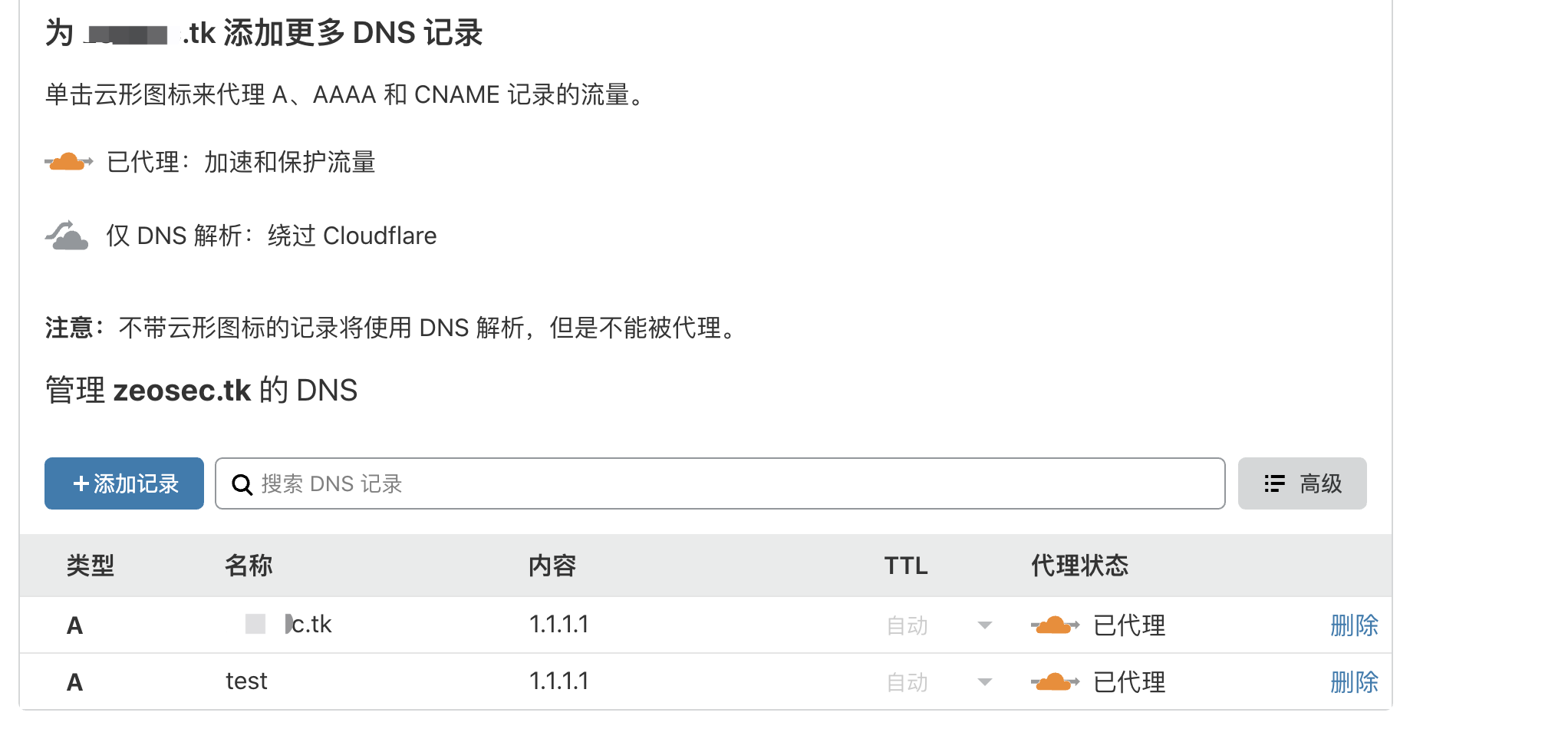
Remember the Cloudflare nameservers, as these must be configured on the domain registrar’s side!
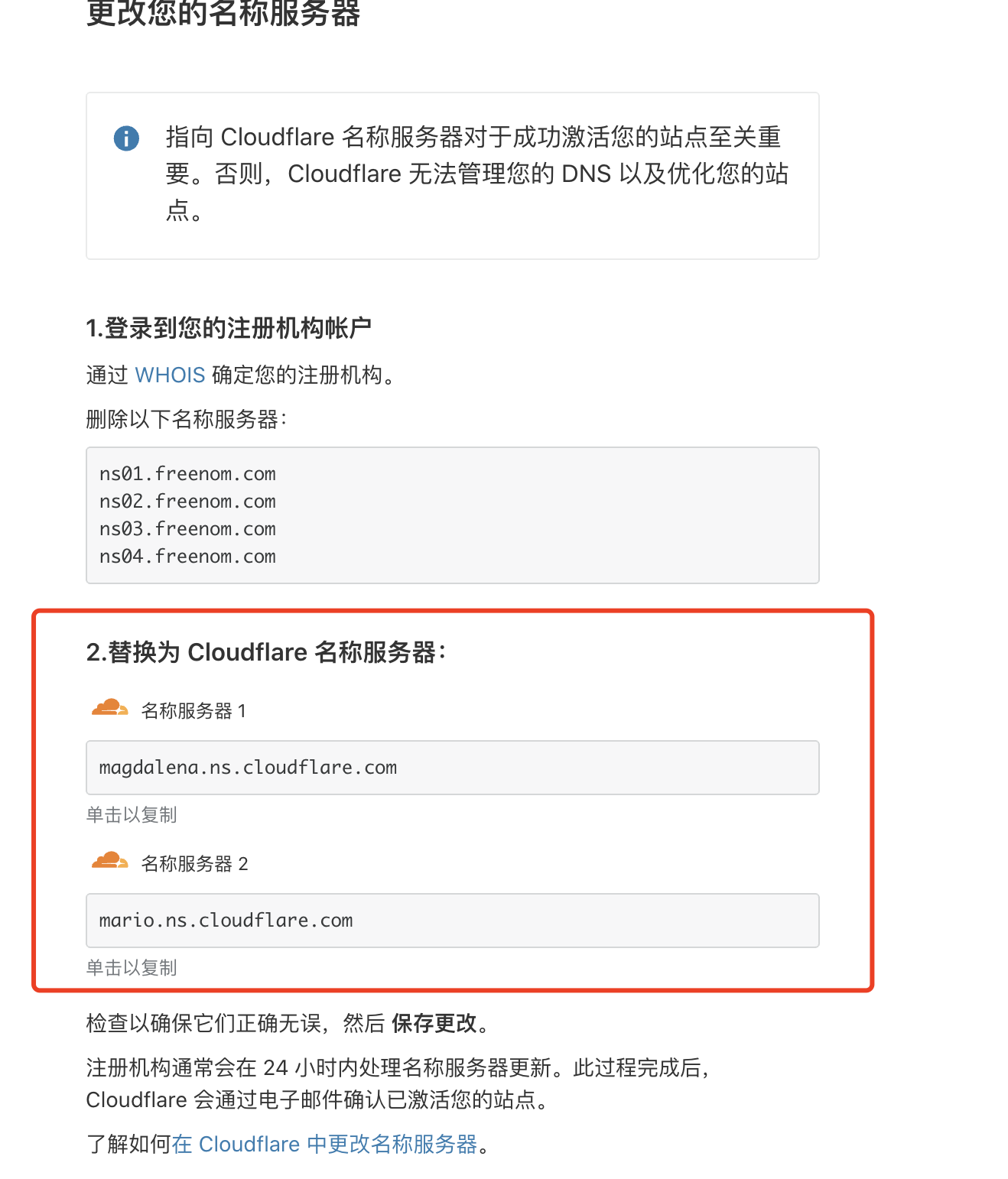
Find your domain name—Manage Domain—Nameservers
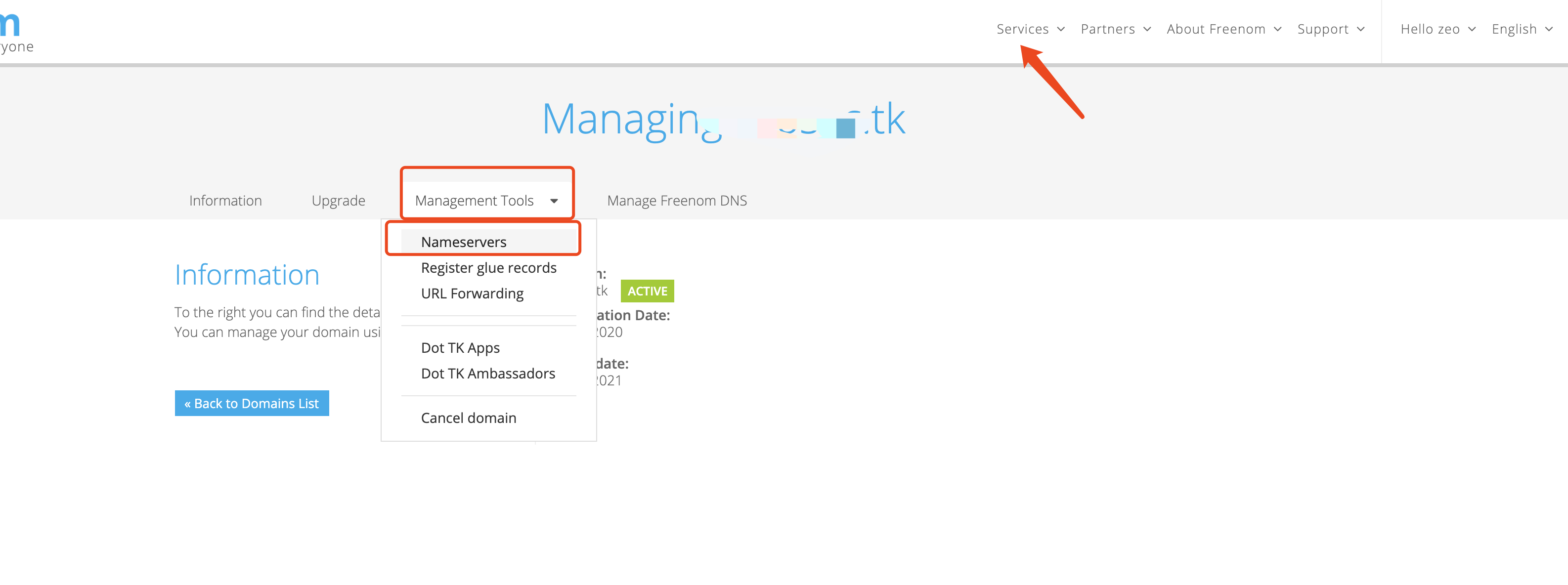
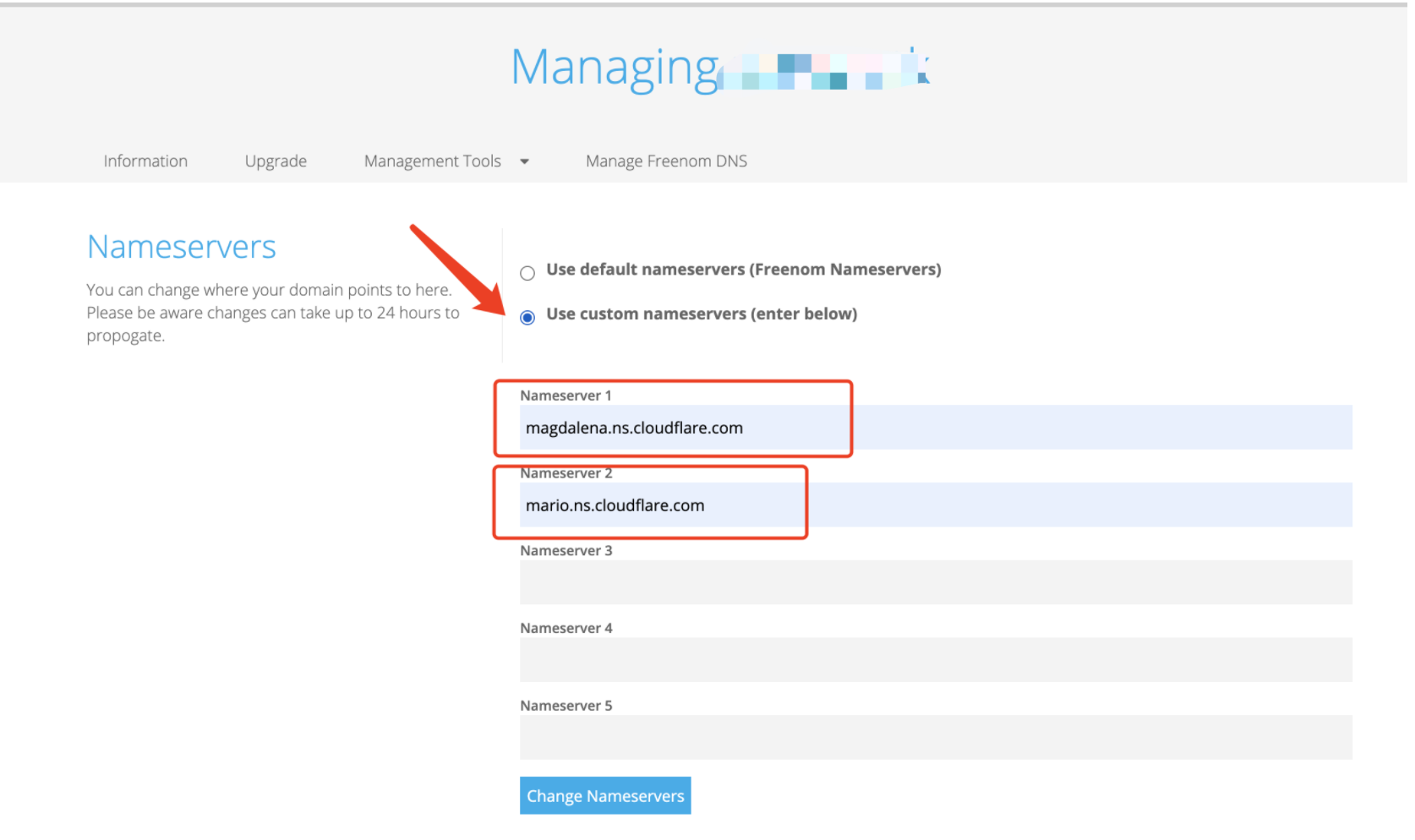
Select the option to use your own nameservers: Use custom nameservers (enter below)
For Nameserver 1 and 2, enter the addresses provided by the CDN
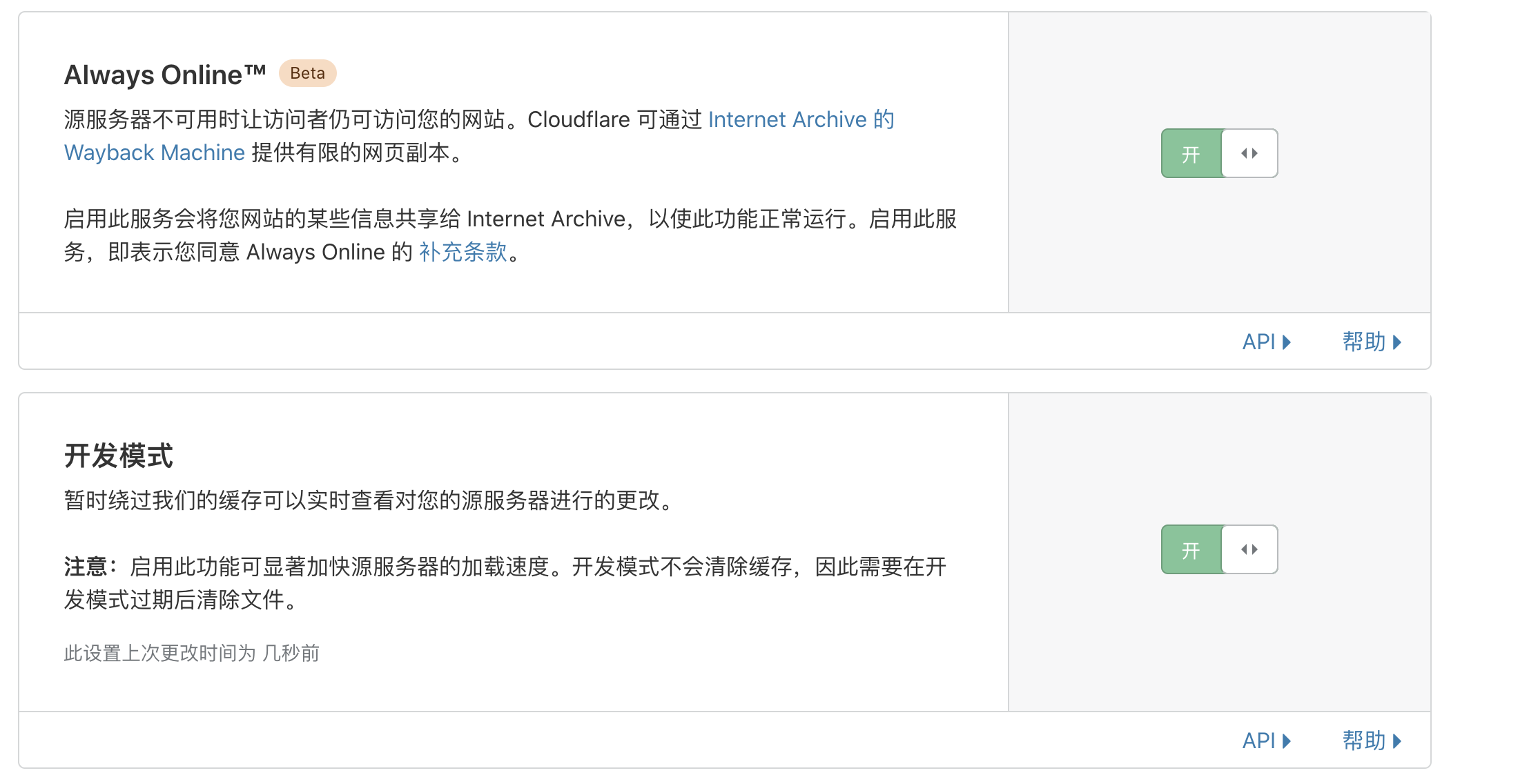
To receive responses to our commands in real time, we need to modify the caching rules:

Make sure both of these options are enabled.
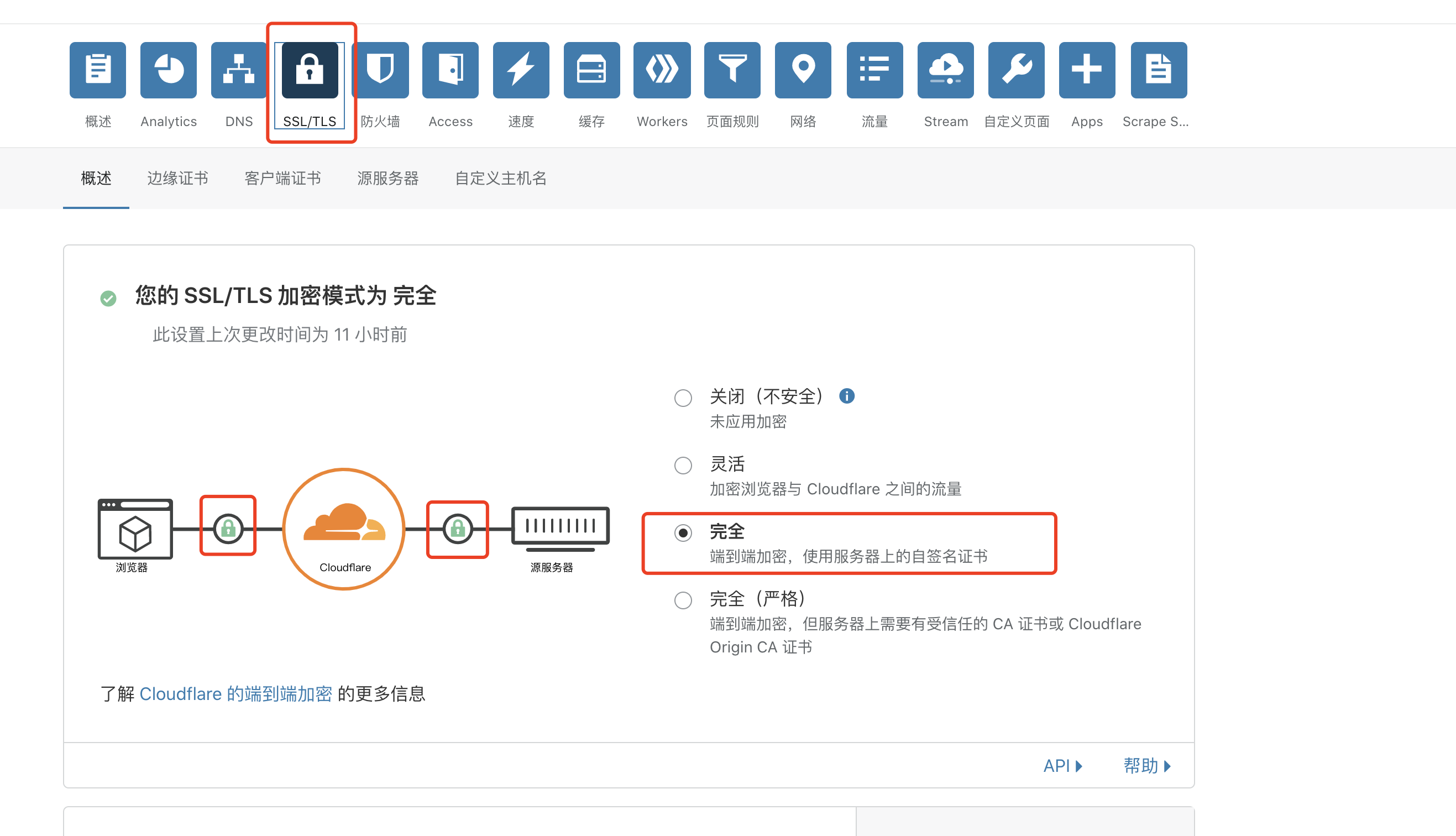
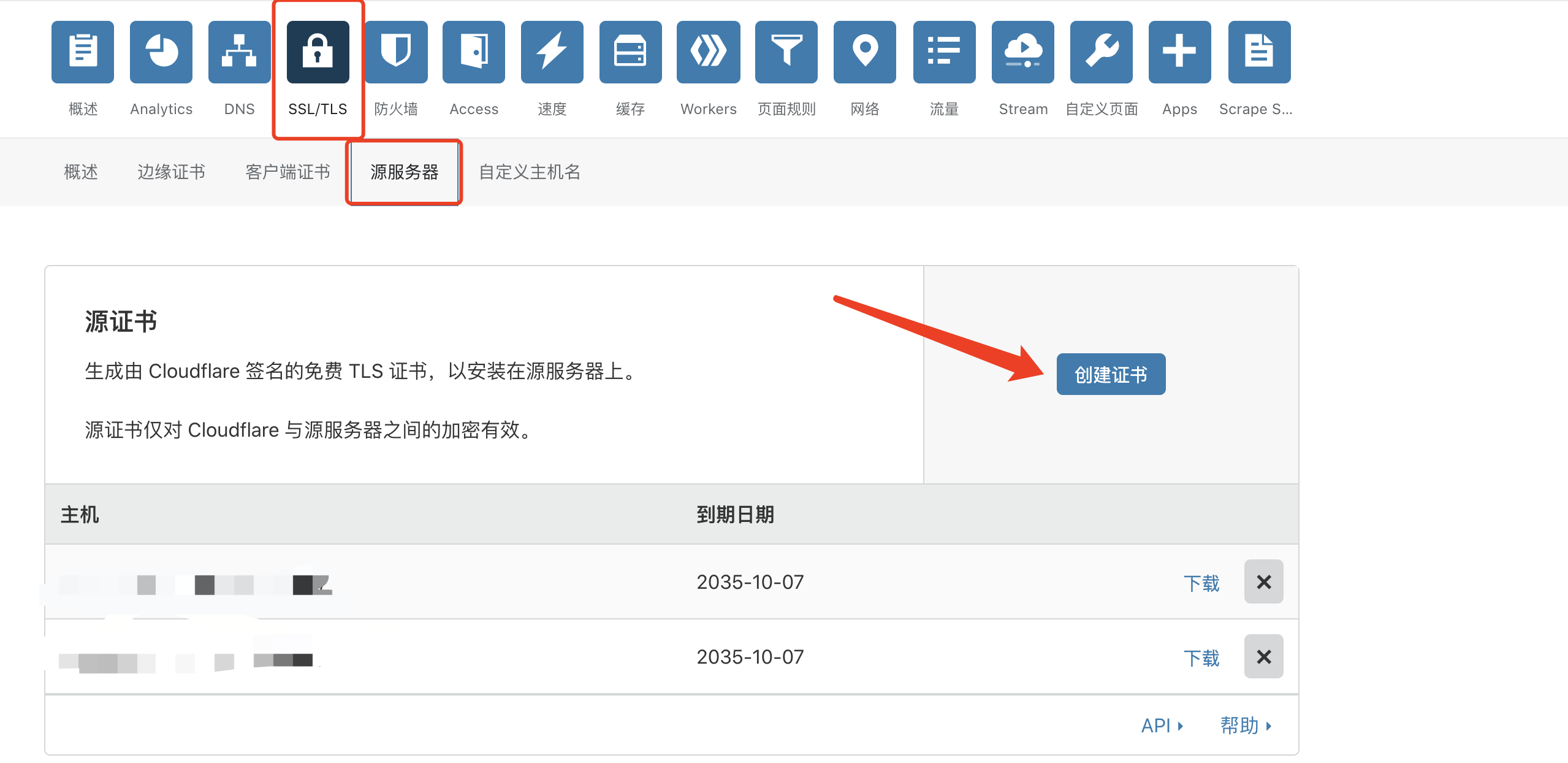
0x05 C2 Certificate Configuration
First, select the certificate mode: Full
Download the certificate
After it is generated successfully, save it. I saved the files as com.pem and com.key.
Generate a CS-compatible configuration file on the VPS
Use the following command to regenerate cobalstrike.store:
openssl pkcs12 -export -in server.pem -inkey server.key -out spoofdomain.p12 -name 域名 -passout pass:密码

例子:
openssl pkcs12 -export -in com.pem -inkey com.key -out spoofdomain.p12 -name test.xxxxx.tk -passout pass:zzz123456
Use the following command to create the certificate:
keytool -importkeystore -deststorepass 密码 -destkeypass 密码 -destkeystore new.store -srckeystore spoofdomain.p12 -srcstoretype PKCS12 -srcstorepass 密码 -alias 域名

例子
keytool -importkeystore -deststorepass zzz123456 -destkeypass zzz123456 -destkeystore new.store -srckeystore spoofdomain.p12 -srcstoretype PKCS12 -srcstorepass zzz123456 -alias test.xxxxx.tk
This ultimately generates a new.store file, which serves as a replacement for cobalstrike.store.

0x06 C2.profile Configuration
Use the following project directly:
https://github.com/FortyNorthSecurity/C2concealerUsage:
安装命令:
chmod u+x install.sh
./install.sh
使用命令:
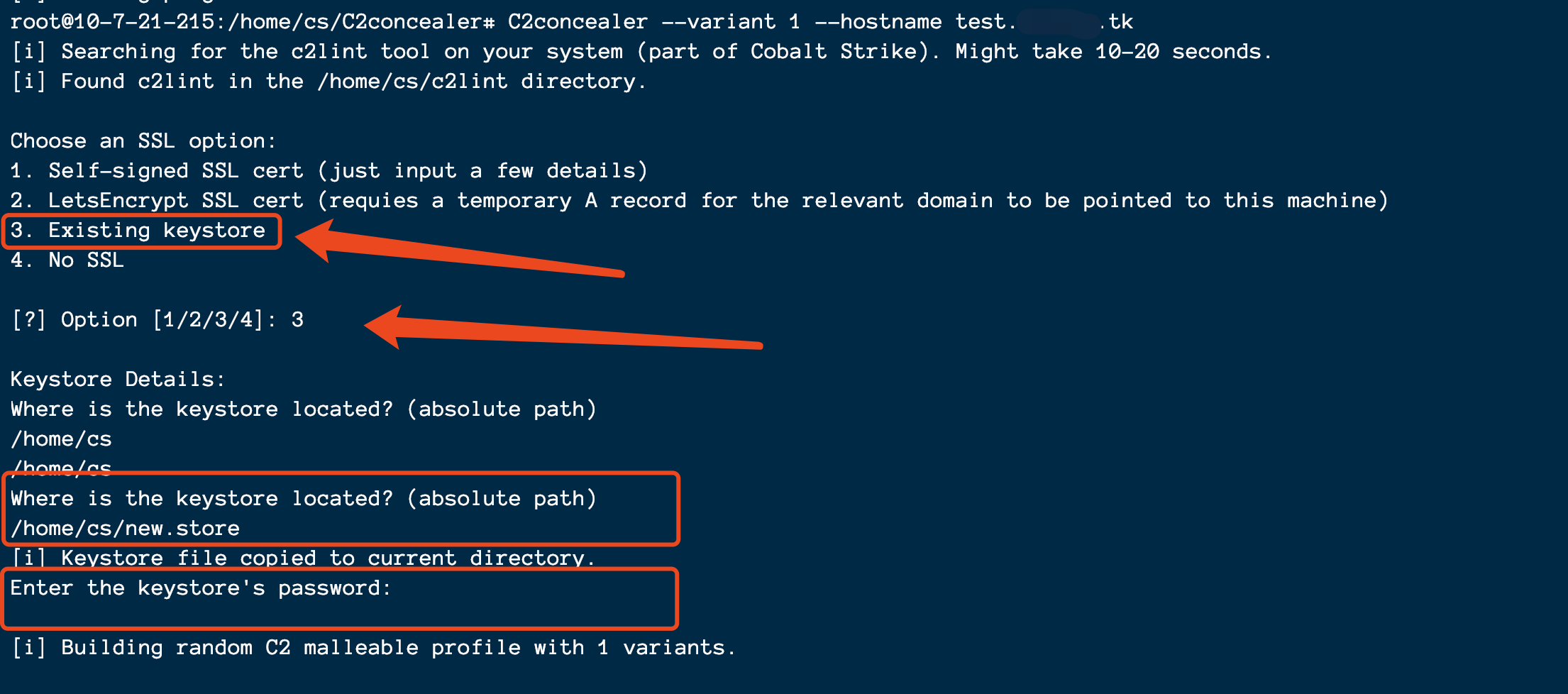
C2concealer --variant 1 --hostname test.domain.tk
Select option 3 here.
Because we are using the certificate provided by the CDN, enter /home/cs/new.store, which is the absolute path to the new.store file generated earlier.
A profile with a random name will ultimately be generated.
Successfully generated.
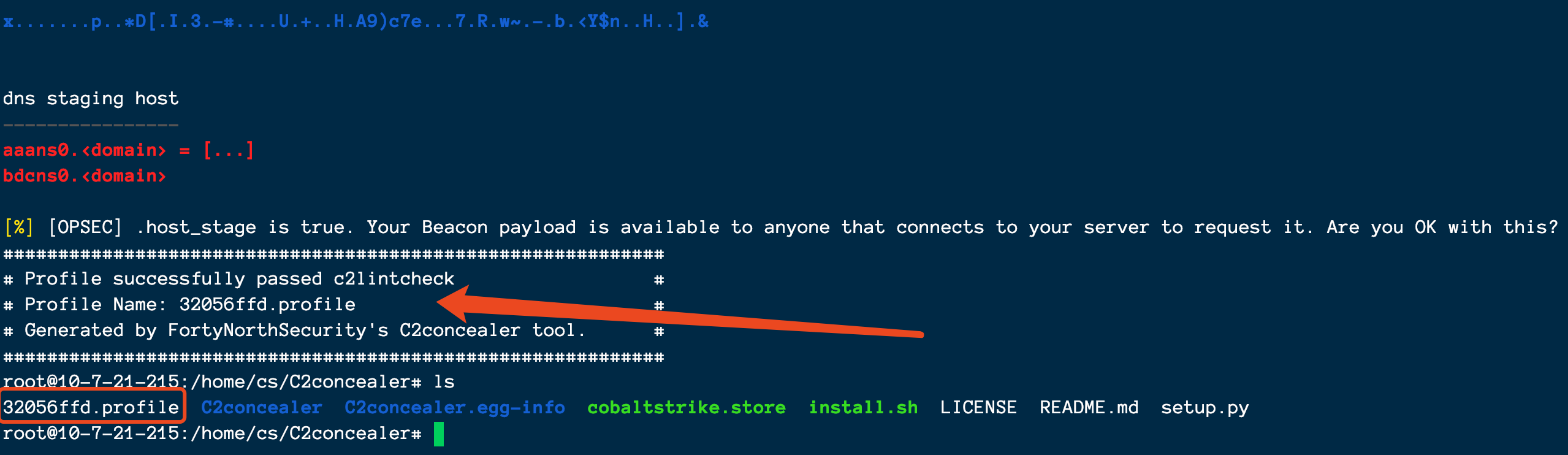
Finally, copy the generated random-number.profile file to the CS directory.
0x07 Starting the C2 Server
Check it with c2lint. Output like the following means it passed:
./c2lint ca730a6d.profile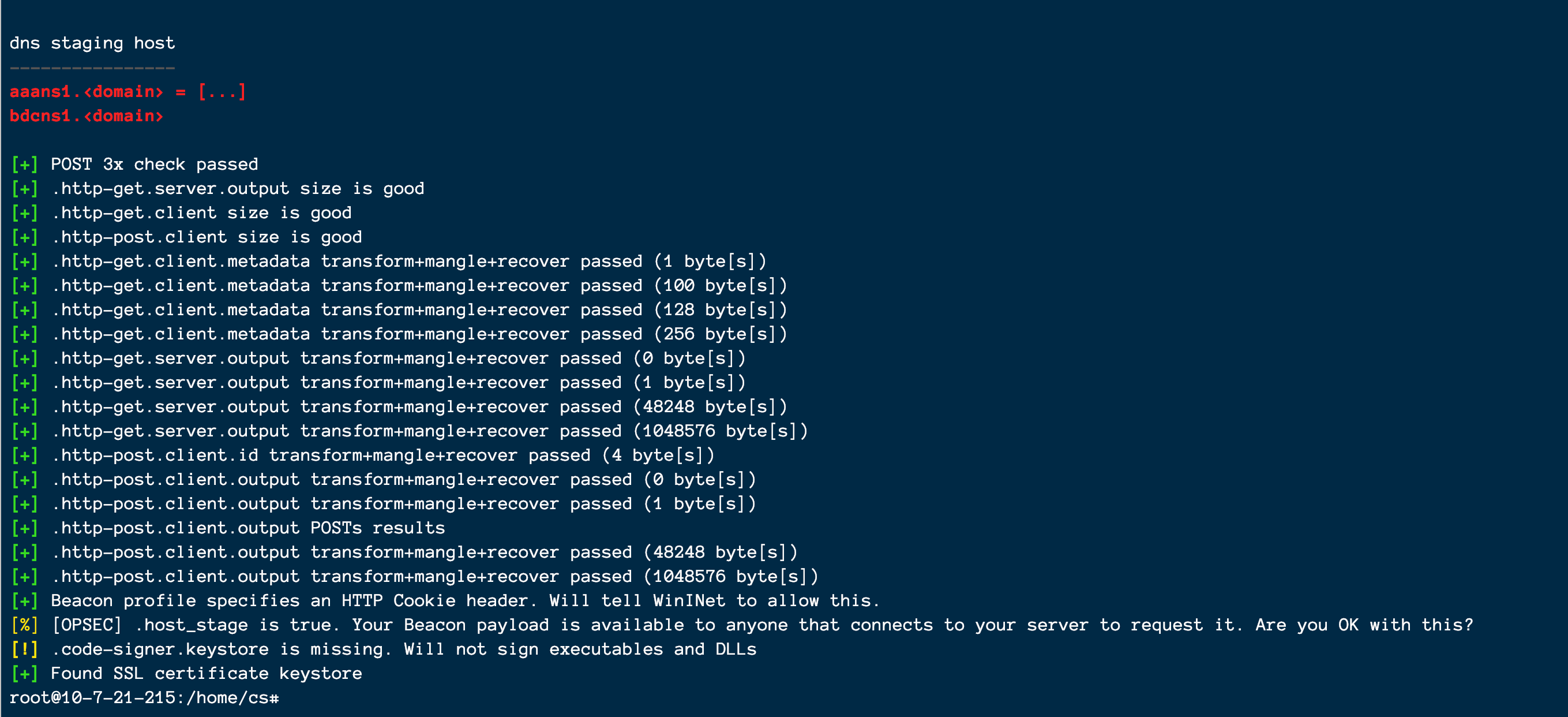
After the check passes, modify the teamserver configuration
vim teamserverModify the contents of the last line.
javax.net.ssl.keyStore=./new.store (证书生成的new.store文件地址) -Djavax.net.ssl.keyStorePassword=zzz123456(上面证书的那个密码)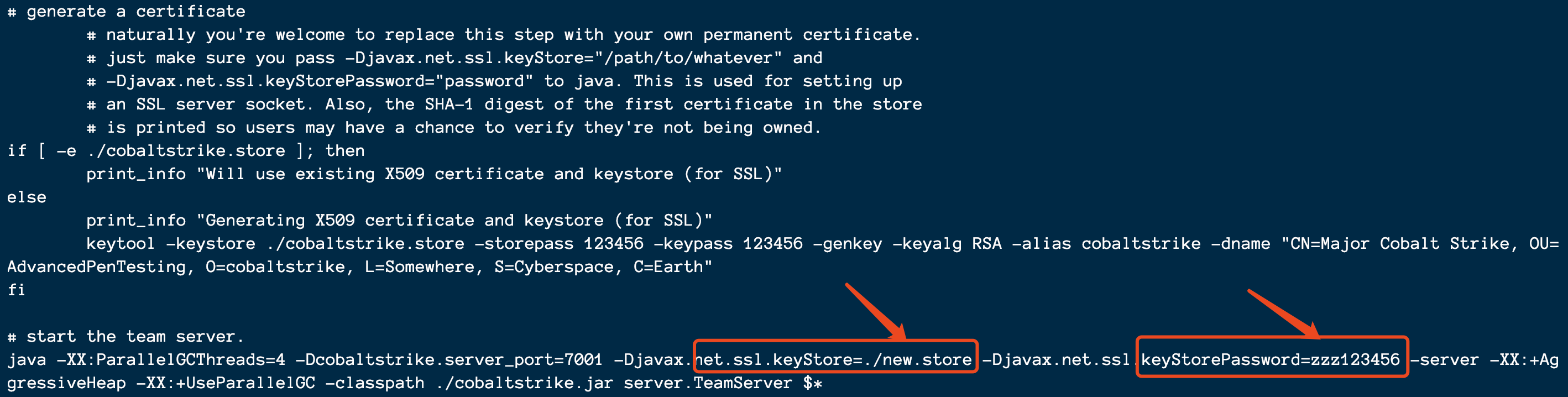
Start the C2 server
./teamserver 192.168.1.1 password123456 ./C2.profile0x08 Configuring CS
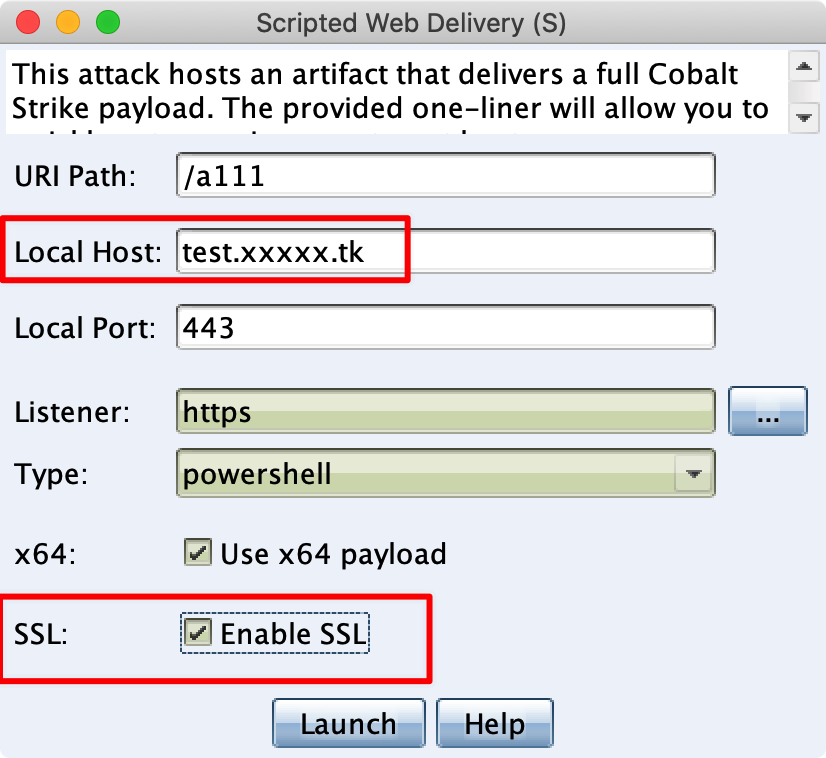
Configure a listener.

Configure a PowerShell payload to come online, and remember to enable SSL.
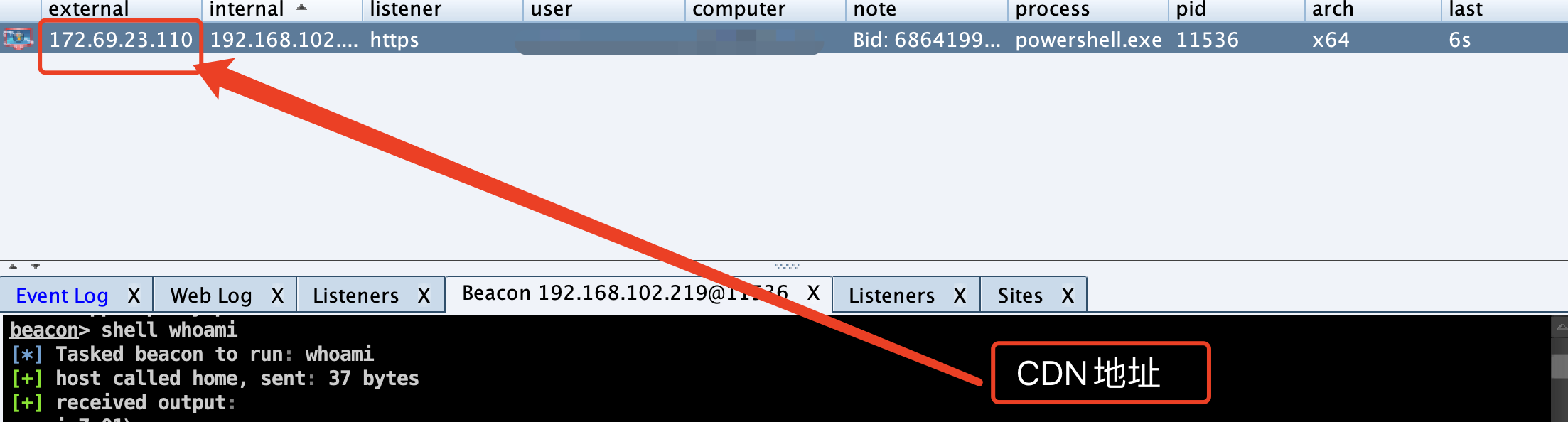
0x09 Successfully Online
Successfully online.
0x10 Summary
This setup primarily uses free services. However, during actual use, I found that this CDN can sometimes be unstable. If circumstances permit, you can switch to a better one, but remember to disable caching.