Environment Setup2 min read
Configuring Xdebug in PhpStorm
Runtime environment: PhpStorm 2019.3 (Chinese-localized), PHP 7.0.12 NTS, and php_xdebug 2.6.0beta1 for PHP 7.0 VC14 NTS; the PHP and Xdebug versions must match.
Read in Chinese→Runtime environment:
PHPSTORM version: 2019.3, Chinese-localized
PHP version: php-7.0.12-nts
Xdebug version: php_xdebug-2.6.0beta1-7.0-vc14-nts
PS: The PHP and Xdebug versions must match.
Xdebug download URL: http://xdebug.org/download.php
1. Add the Xdebug configuration to php.ini in the runtime environment
[XDebug]
zend_extension="D:\phpStudy\php\php-5.6.27-nts\ext\php_xdebug.dll"
xdebug.remote_enable=On
xdebug.remote_handler=dbgp
xdebug.remote_host=localhost
xdebug.remote_port=9000
xdebug.idekey=PHPSTORM
```## 2. Restart and check phpinfo\(\); information about Xdebug will be displayed
## 3. Configure PhpStorm
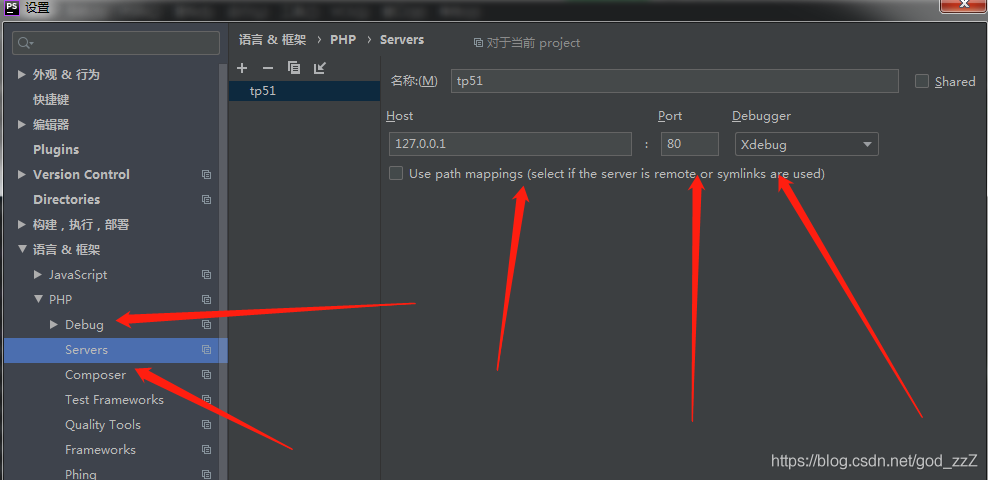
1. For client debugging, open PhpStorm and go to File > Settings > PHP > Servers. Enter the relevant server information here: set name to localhost, host to localhost, port to 80, and debugger to \[XDebug\].
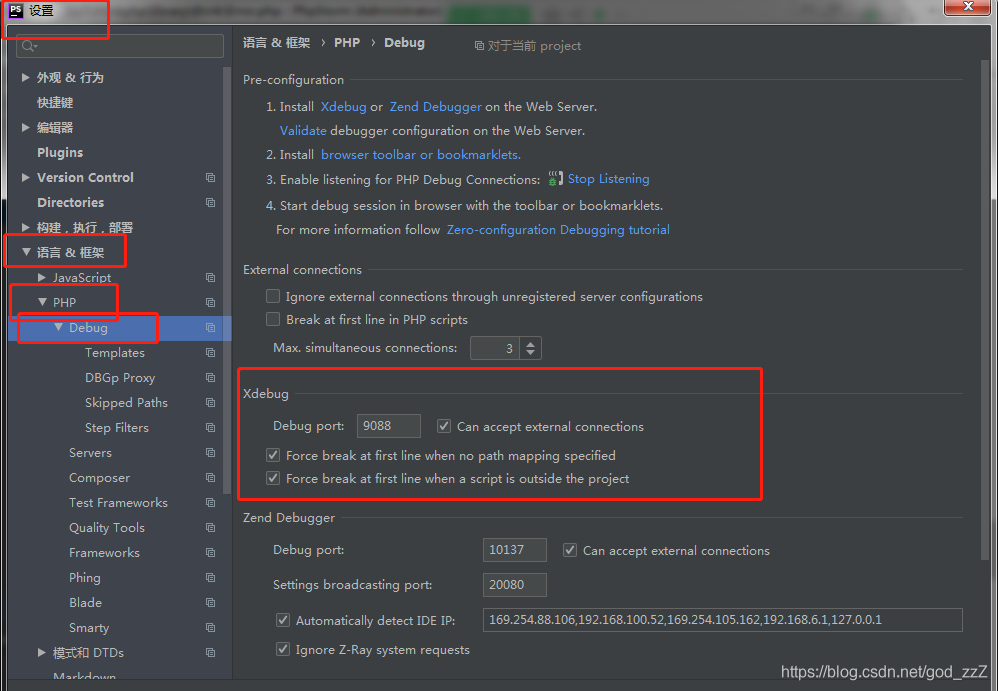
2. Go to File > Settings > PHP > Debug. Under the XDebug tab, set port to 9000 and leave the other settings at their defaults.
The port must match the configuration in php.ini.
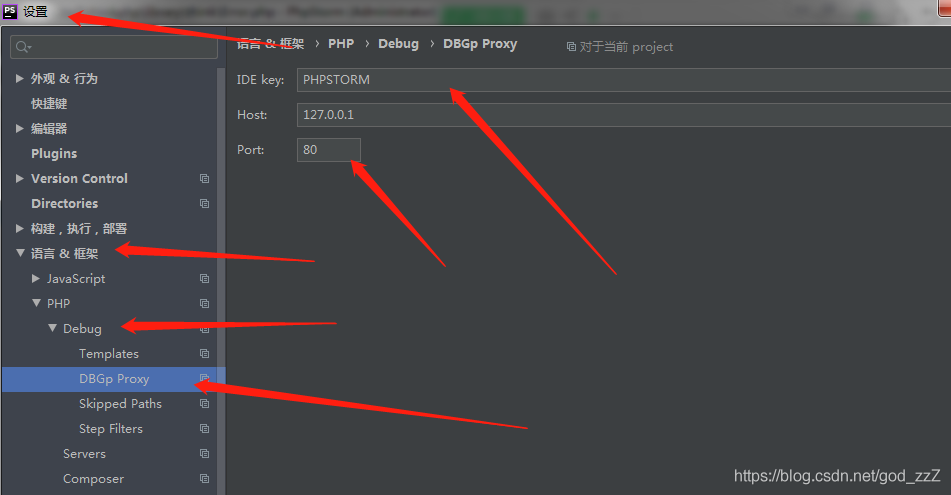
3. Go to File > Settings > PHP > Debug > DBGp Proxy. Set IDE key to phpStorm, host to localhost, and port to 80.
At this point, the debug/run button at the top of PhpStorm is grayed out.
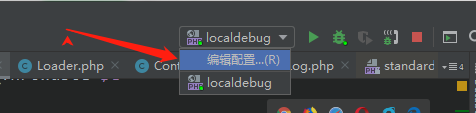
Click the + button to add a service.
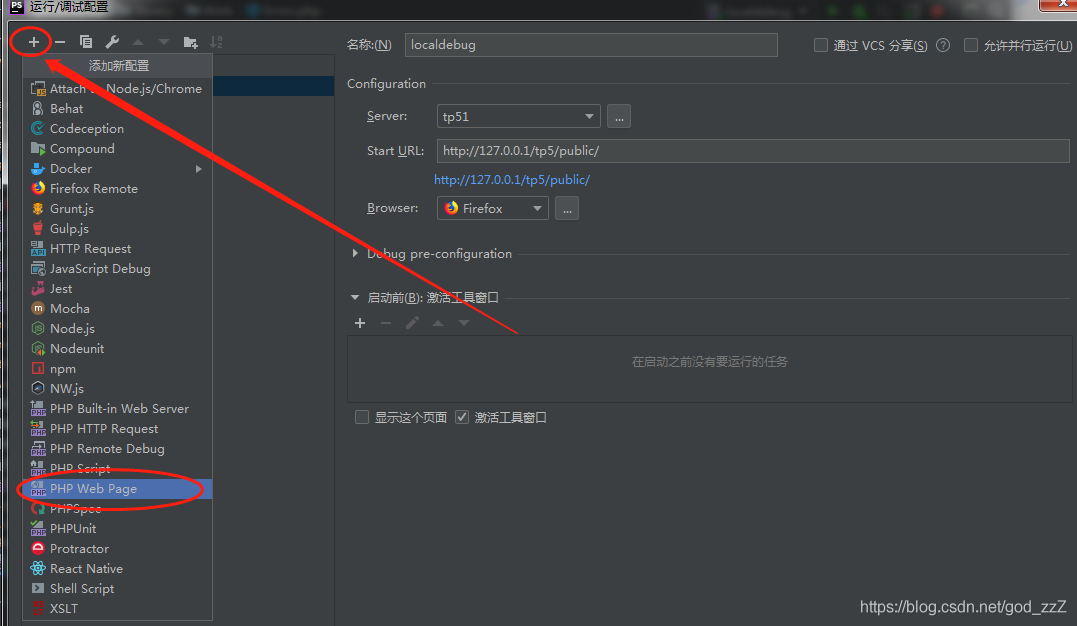
Configure the server first.
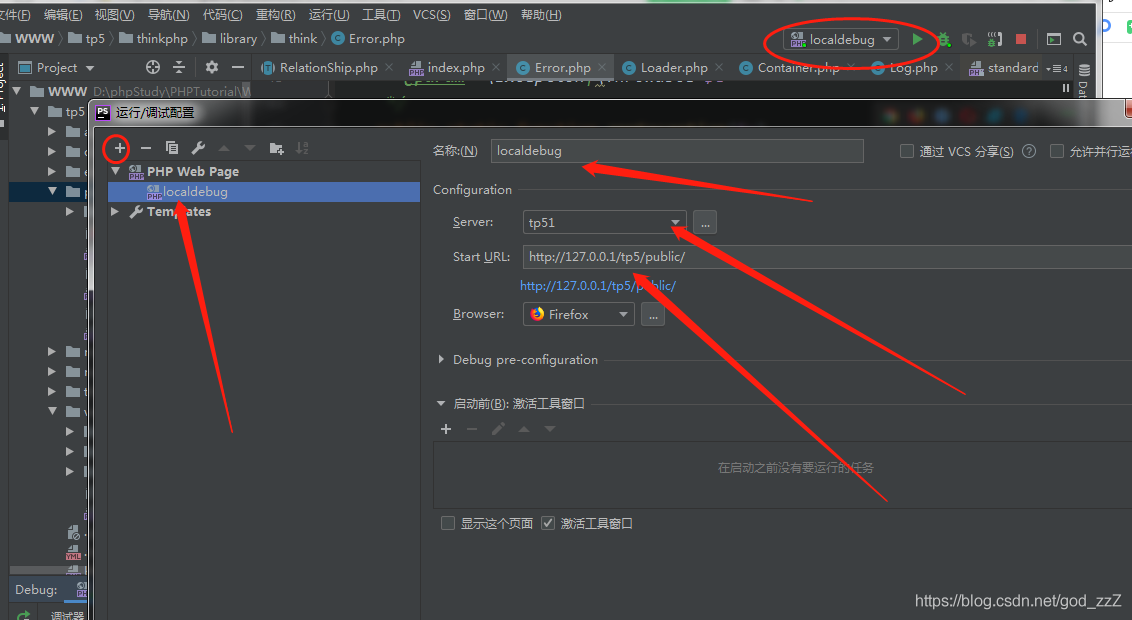
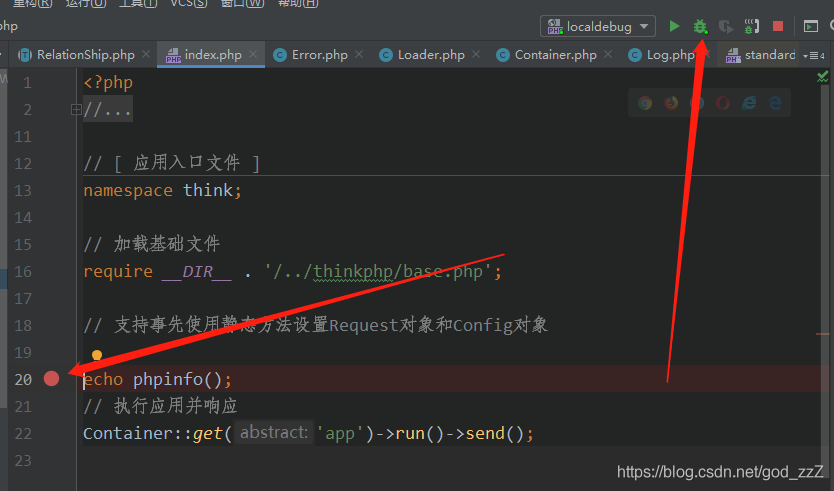
Set a breakpoint. The debug/run button will now turn green. Click the debug button to start debugging.